> For the complete documentation index, see [llms.txt](https://docs.omnichat.ai/llms.txt). Markdown versions of documentation pages are available by appending `.md` to page URLs; this page is available as [Markdown](https://docs.omnichat.ai/en/features/she-ding/tong-xun-qu-dao/wang-zhan-dui-hua-cha-jian/install/cyberbiz-or-omnichat-installation.md).
# CYBERBIZ | Omnichat Installation
How to Install Omnichat on CYBERBIZ Store?
If you use the **CYBERBIZ** e-commerce platform, there are two ways to install the Omnichat Chat Plugin. Choose either method:
1. [Install the Webchat Plugin through the **CYBERBIZ Admin Panel**](https://app.gitbook.com/o/-L_qBouk_wijumBR7PT3/sites/site_0oD9U/s/3u2I1osIy6mEi07X1z46/~/edit/~/changes/605/features/tong-xun-qu-dao/wang-zhan-dui-hua-cha-jian/install/cyberbiz-or-omnichat-installation#install-the-chat-plugin-via-the-cyberbiz-admin-panel)
2. [Install the Chat Plugin using **Google Tag Manager**](/en/features/she-ding/tong-xun-qu-dao/wang-zhan-dui-hua-cha-jian/install/google-tag-manager.md)
## Install the Webchat Plugin via the CYBERBIZ Admin Panel
### Step 1
[login](https://app.omnichat.ai/) to the Omnichat admin page
### Step 2
Go Settings > Channels > Webchat Plugin > [Install Webchat Plugin](https://app.omnichat.ai/install.html) page
1\. Enter the website address where Omnichat will be installed\
2\. Choose the Omnichat theme colour\
3\. Select the Omnichat Language\
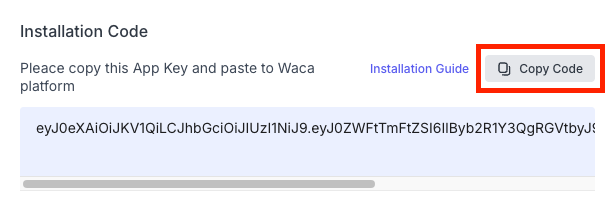
4\. Copy the Omnichat installation code
### Step 3
Log in to your CYBERBIZ store admin panel:
### Step 4
1. In the left-side menu, go to **Website Appearance > Theme Management**.
2. Click **Actions**, then select **CSS/HTML Editor**.
### Step 5
Check **I have read and agree to the above terms**, then click **I Agree**.
### Step 6
* Under **Overall Configuration**, select **theme\_liquid**.
* Paste the Omnichat installation code you copied earlier **after the `` tag**. If you can't find the installation code, click [**here**](#step-2).
Click"theme_liquid"
* Click **Save**.
### Step 7
Once the Chat Plugin appears on your website, the installation is complete.
## Finish**ed**!