> For the complete documentation index, see [llms.txt](https://docs.omnichat.ai/llms.txt). Markdown versions of documentation pages are available by appending `.md` to page URLs; this page is available as [Markdown](https://docs.omnichat.ai/en/features/she-ding/third-party-survey.md).
# SurveyCake Integration Set Up
This section outlines the steps to integrate SurveyCake with Omnichat, which allows you to automate survey distribution with the Chatbot Module through your connected messaging channels (Facebook Messenger, LINE, Instagram, and WhatsApp). This approach efficiently gathers valuable feedback from your contacts and lets you import the data as tags or custom attributes for improved contact organization and segmentation.
Currently in Phase 1, this setup only allows the manual export of SurveyCake survey data. You will import the data into Omnichat to update your contact tags and custom attributes.
## Setting Up on SurveyCake
First, create a survey on your SurveyCake account.
{% hint style="warning" %}
Ensure that you are on a **Pro Plan** to be able to connect your SurveyCake account with Omnichat.
{% endhint %}
1. Log in to the SurveyCake admin portal and enter the survey editor for your created survey.
* Add two "Single Line Text" questions at the very top of the survey to collect the "Channel ID" and "User ID" respectively.
* Click open the question toolbar, then select "Advanced" > "Identifier and Default Value".
{% hint style="info" %}
To prevent respondents from altering the data, you can set these questions to "Hide".
{% endhint %}
2. Once there, add the question identifier for your question.
* Click [here](https://en-docs.omnichat.ai/features/tong-xun-qu-dao/third-party-survey/configuring-question-identifiers) to learn more on how to configure your identifier.
3. channel\_user\_id: We also recommend checking the 'Unrepeatable' option, so SurveyCake can validate duplicate UIDs. This helps prevent issues with survey links being publicly shared or reused.
4. To prevent respondents from altering the data, you can set these questions to "Hide".
5. Once you are done with your survey questions, proceed to Omnichat's Chatbot Module after saving your survey setup.
## Setting Up on Omnichat
#### Step 1: Log in to your Omnichat portal.
1. Navigate to the "Settings" page.
2. Under "Integrations", click on "SurveyCake" to proceed.
#### Step 2: Integrate Omnichat with SurveyCake
To integrate Omnichat with SurveyCake, please complete the following fields on the Omnichat SurveyCake integration page:
1. **Name**
2. **Survey Link**
3. **Hash Key**
4. **IV Key**
5. **Response Settings**(Once enabling it, can save survey completion time as a custom attribute)
#### Step 3: How to get **SurveyCake URL**
Go to the SurveyCake portal, click the “...” icon in the bottom-right corner of your survey, select ”Survey Link“, and copy the URL.
Return to the Omnichat portal and paste the survey URL. The ”Survey Sending Link“ section will automatically generate a dedicated link with parameters attached.
#### Step 4: How to get **SurveyCake Hash Key and IV Key**
Go to the SurveyCake portal, click the '...' icon in the bottom-right corner of your survey, and select “Notification”.
Go to the Notifications page, click the Webhook tab, copy the Hash Key & IV Key, and paste them back into the SurveyCake page on the Omnichat portal.
#### Step 5: Paste Omnichat Webhook URL into SurveyCake portal
Return to the Omnichat portal, copy the Omnichat Webhook URL, and paste it into the Webhook field on the SurveyCake portal.
Navigate to the Webhook page in the SurveyCake portal, paste the Omnichat Webhook URL, and click Save.
#### Step 6 Insert the survey sending link previously generated by Omnichat into the message flow card button.
1. Go to the SurveyCake page in Omnichat and copy the Survey Sending Link.
2. Go to the Message Flow editor page and add a new chatbot card with a button.
3. Under Open URL, paste the Survey Sending Link you copied earlier.
{% hint style="warning" %} **Please do not modify the survey URL parameters, as changes may prevent data from automatically populating into the survey.**
{% endhint %}
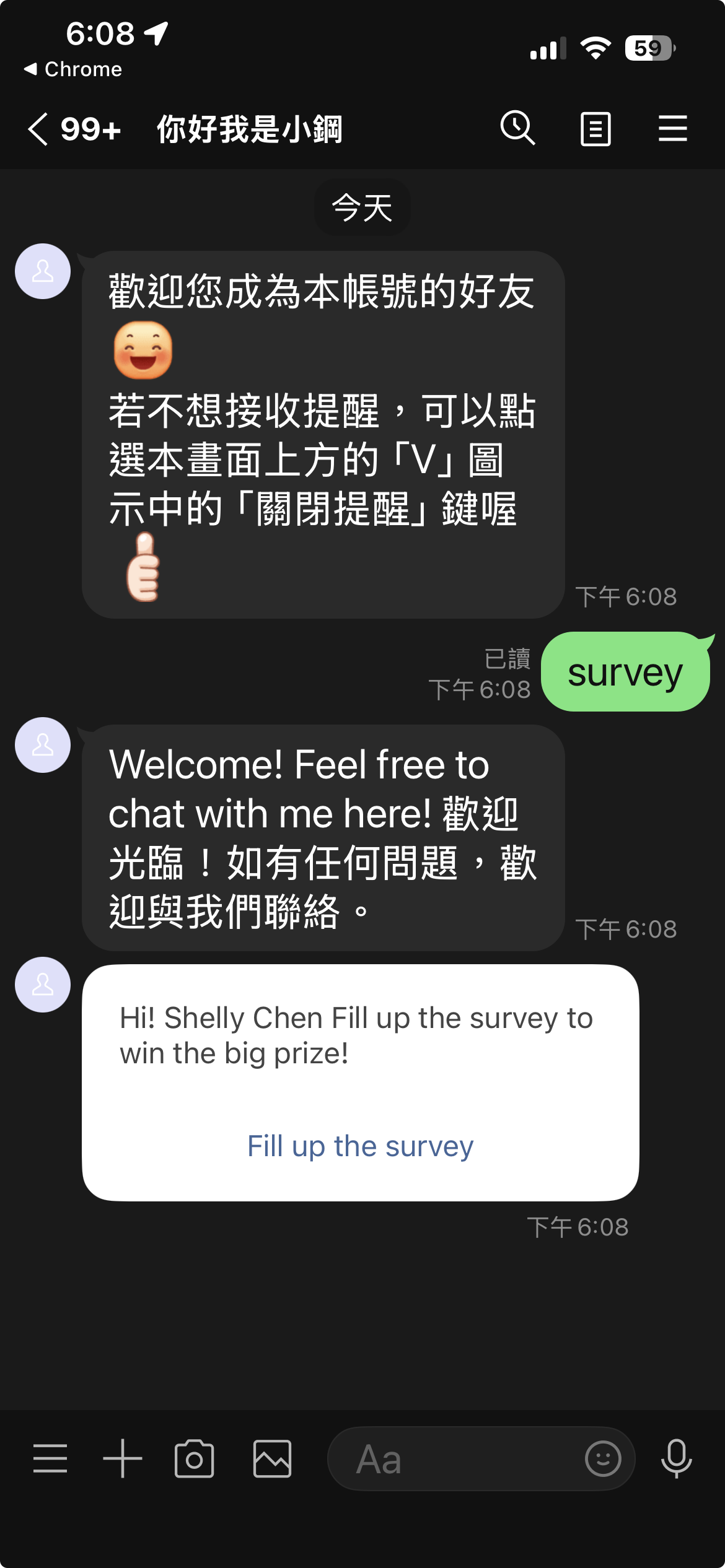
Once the chatbot card setup is complete, you can start sharing it with your customers across various scenarios to collect survey responses!
When a customer fills out the survey via the dedicated link inside the chatbot card, the system will automatically populate their Channel Name and User ID into the survey.
Once a customer submits the survey, their response tags will automatically sync back to their contact profile in Omnichat.
Meanwhile, you can view the passed variables alongside the survey responses on the Detail Export page in SurveyCake.
You can also export the responses as a CSV file for manual data processing, and then import them back into the Omnichat portal.
## Survey Details & Data Import
1. In your SurveyCake account, click on your survey and go to Data Report. This is where you will see all your collected data.

2. Click the "**Export as**" dropdown and select "**CSV Format**" to download your report.

3. Once you have downloaded the report, you will have manually reorganize the downloaded CSV file to match Omnichat's contact import template. You can find this template by navigating to **Social CDP > Data Import** in Omnichat.
4. Proceed to organize your survey responses as tags or custom attributes within the file. This allows for further segmentation and analysis within Omnichat.
5. Navigate back to the **Social CDP > Data Import** section. Upload the prepared CSV file containing your organized survey data.
{% hint style="info" %}
**Enhancements Planned**: In Phase 2, we will introduce automatic tag import functionality for surveys. However, custom attributes will still require manual processing for the time being.
{% endhint %}