> For the complete documentation index, see [llms.txt](https://docs.omnichat.ai/llms.txt). Markdown versions of documentation pages are available by appending `.md` to page URLs; this page is available as [Markdown](https://docs.omnichat.ai/en/features/she-ding/billing-overview-revamped/how-to-modify-recharge-your-balance.md).
# How to Modify/Recharge Your Balance
From the Main Menu, click "Account Overview"

You will see 3 sections: Pay and Top-up, Transaction Record, and Usage Statistics. Previously, you would see the Account Overview section like this:

Now, with this update, you will see that there are extra sections added in the Pay and Top-Up section, which is a breakdown of the usage, as well as settings for payment methods and automatic recharges.
{% hint style="warning" %}
**For Hong Kong/SEA customers:** This section is mainly to review your WhatsApp Business API credits.
**For Thailand and Taiwan customers:** This section is mainly to review your LINE SMS (only in Taiwan) and LINE Notification credits (both Taiwan and Thailand).
{% endhint %}

The **Available Balance** section displays the funds accessible for your monthly conversational transactions, including WhatsApp Business API, LINE notifications, and LINE SMS.
**This balance is updated on an hourly basis.** Negative balances are indicated in red, while positive balances are shown in black. The method of calculation is as follows:\
\
**Available Balance (Hourly Calculation)** =\
Transaction Record Balance - Unbilled Usage (Hourly Calculation) - Accumulated Unpaid Monthly Statements

{% hint style="info" %}
**Reminder:**\
**All** invoices, including those that remain unpaid from July 1st onward, will be settled using the Available Balance.
{% endhint %}
### AI Quota Balance
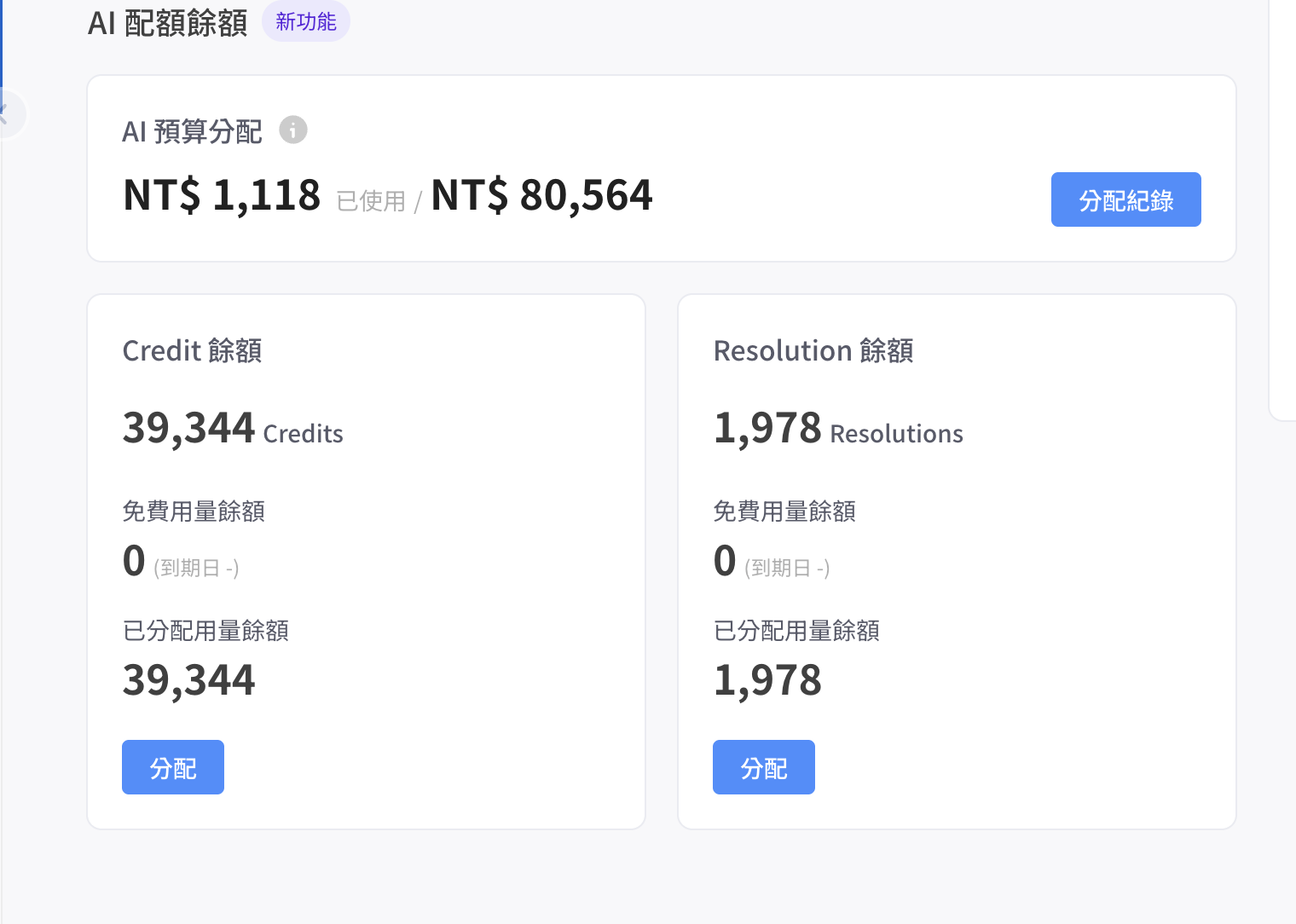
A new **AI Quota Balance** section has been added to Billing Overview, showing the Credit and Resolution quotas for Omni AI in one place, with an entry point for allocation history.
AI Quota Balance section
#### Quota composition
* **AI Budget Allocation:** Used amount / total allocated amount (shown in the team's billing currency)
* **Credit Balance:** For usage-based features such as Bot Builder
* Free balance (with expiration date)
* Allocated balance
* **Resolution Balance:** For per-resolution features such as Service Agent / Shopping Agent
* Free balance (with expiration date)
* Allocated balance
#### Quota types and allocation mechanism
* Two quota types:
* **Free:** Free quota granted by the system, comes with an expiration date and expires automatically.
* **Allocated:** Paid quota transferred from the team's available balance.
* **Minimum allocation:** 10,000 credits / 1,000 resolutions
* **Allocation flow:** Specify the credit or resolution amount → convert to USD → convert to the team's billing currency at a fixed USD exchange rate → transfer from the available balance to the AI budget (the amount is reserved; the actual charge happens at the end of the month).
* **Deduction order:** Free balance is consumed first; once it runs out, the allocated balance is used.
* **Settlement:** On the 3rd of the next month, the previous month's actual usage is reconciled. A monthly statement is generated and the actual amount is deducted from the team's available balance.
{% hint style="info" %}
The "Allocate" action is currently performed by Omnichat on the team's behalf. Users cannot allocate AI budget from the available balance themselves. To adjust your AI quota, please contact your customer success manager.
{% endhint %}
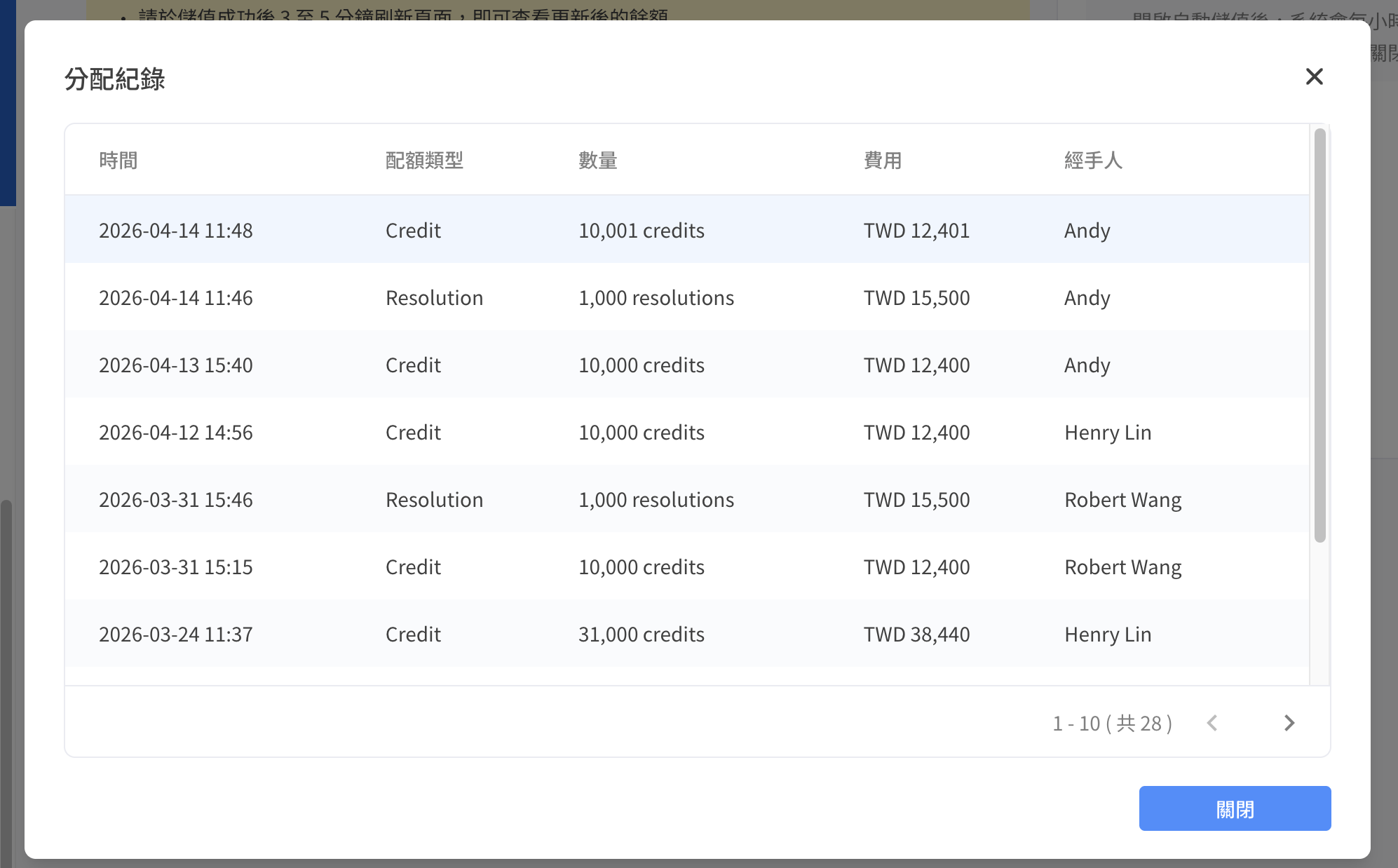
#### Allocation History
Click the **Allocation History** button next to "AI Budget Allocation" to open the Allocation History dialog. It lets the team audit how AI quota has been allocated over time.
Allocation History
* **Columns:** Time, quota type (Credit / Resolution), amount, cost, operator
* **Sort order:** Always by allocation time, newest first
* **Pagination:** 10 records per page
* **Empty state:** "No allocation records yet" is shown when the team has no records
* **Operator retention:** If the operator is later removed or deactivated, the original operator name remains in the record
{% hint style="warning" %}
Allocation History only shows **Allocated** records. Free quota granted by the system is not included.
{% endhint %}
To enable the auto-recharge function, you must first select your default payment method. Navigate to the "Default Payment Method for Automatic Top-Ups" section and click on "Settings.

You will be directed to a Stripe billing page where you will need to enter your credit card details to activate the auto-recharge settings. Click on "Add Payment Method".

Proceed to fill in your card details.

Click `Add` after you're finished.

After you have added your credit card details, you will be able to activate the toggle in the "Auto Recharge" section, enabling the feature.

To set up the auto recharge feature, click "edit amount".

A pop-up will appear, allowing you to configure your automatic recharge settings:
* **Balance Threshold:** Specify the minimum balance that should be maintained. Once the balance falls below this threshold, an automatic recharge will be initiated.
* **Recharge Amount:** Determine the fixed amount to be added to your account during each automatic recharge.

{% hint style="warning" %}
Please be notified that for credit card payments, you will be charged:\
a) Stripe charges at 5% for the handling fee.\
b) There might be extra charges to your own credit card company (except Hong Kong).\
b) For charges in New Taiwan Dollar (NTD), you will be charged an additional 5% Tax for every transaction.
{% endhint %}
Once you are satisfied with your setup, click "Save."

On the lower section of the page, you will see the invoice history. Previously, there were no date filters available. This update introduces an additional date/time filter, allowing you to view your past invoices more effectively.

On top of that, you can also filter the invoices based on their types.

Next, you can also filter the invoice history based on their statuses. This new update helps you stay informed about the status of your payments.

You can also export your reports if you wish.

Next, we'll look at the Transaction Records section.