> For the complete documentation index, see [llms.txt](https://docs.omnichat.ai/llms.txt). Markdown versions of documentation pages are available by appending `.md` to page URLs; this page is available as [Markdown](https://docs.omnichat.ai/en/features/omni-ai-add-on-feature/omni-ai-use-case/omni-ai-media-gallery.md).

# Omni AI Media Gallery

A media management hub that integrates AI image generation and editing. Upload, organize, generate, and edit images while keeping a full version history; images can be picked directly inside Bot Build

Omni AI Media Gallery is a media management hub that integrates AI image generation and editing. Here you can upload, organize, generate, and edit images. Every image keeps a full version history so you can roll back to any earlier version at any time. Images in the Gallery can be picked directly from features such as Bot Builder, letting AI-generated visual assets flow seamlessly across the entire product workflow.

***

## Feature overview

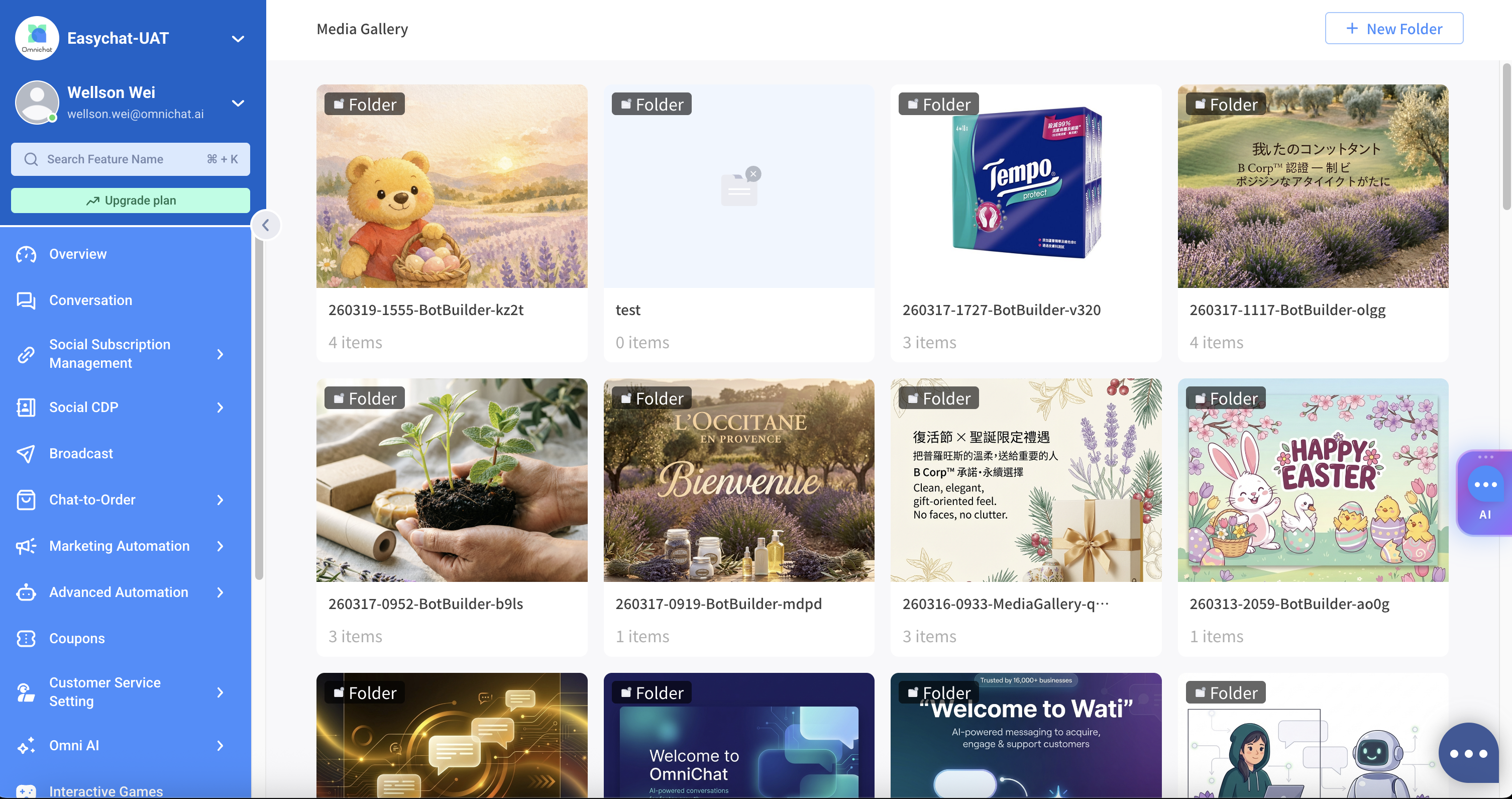
### 1. Folder management

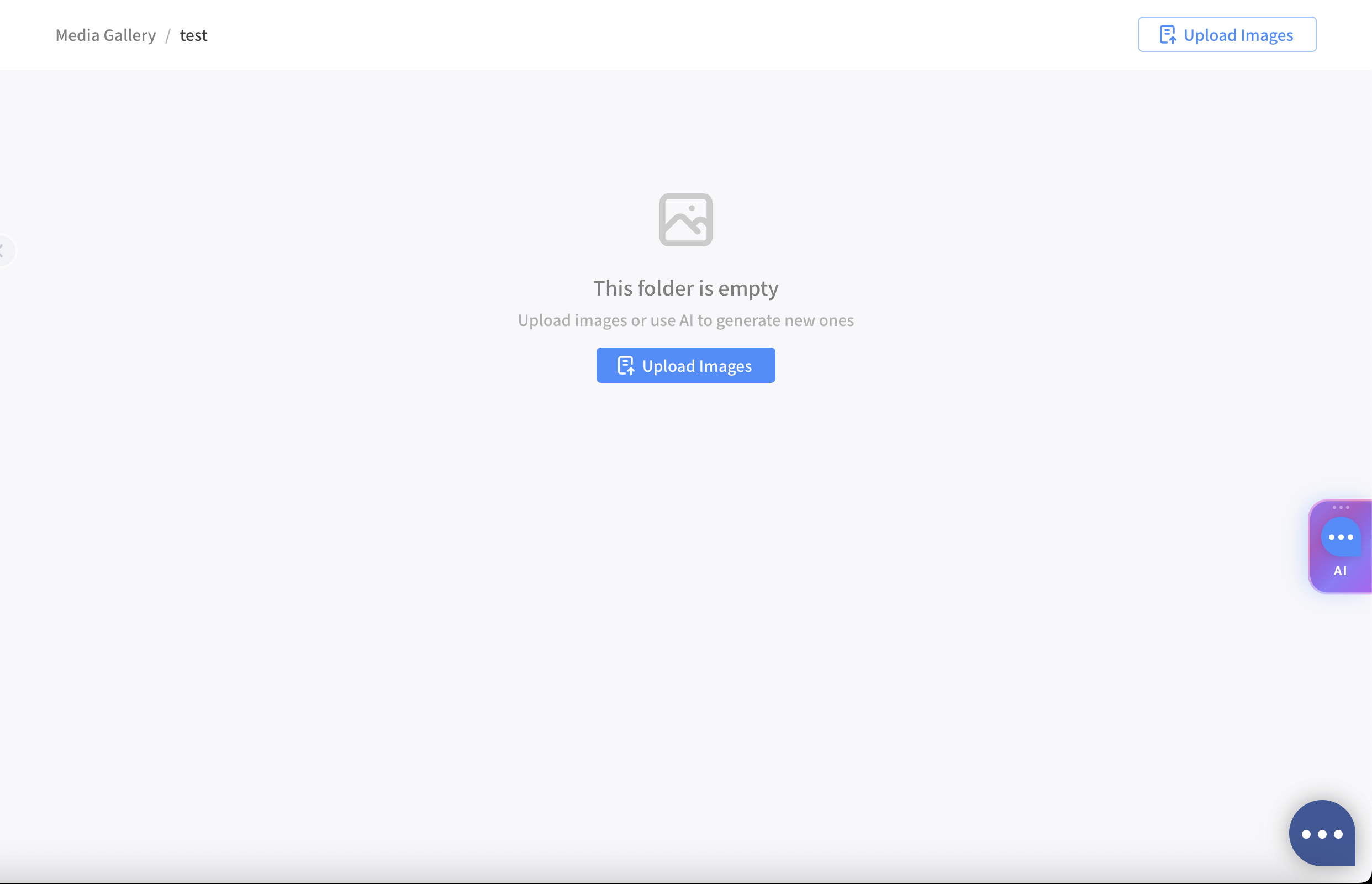
Organize and manage media assets with a folder structure.

* Create, rename, and delete folders freely
* Folder name length: 1–255 characters
* A folder must be emptied before it can be deleted

<div align="left"><figure><img src="https://2848678129-files.gitbook.io/~/files/v0/b/gitbook-x-prod.appspot.com/o/spaces%2F3u2I1osIy6mEi07X1z46%2Fuploads%2Fgit-blob-7b2a7fc64cee14a10a73ceece9f7fe014e58ebb7%2Fomni-ai-gallery-01-folders.png?alt=media" alt="" width="375"><figcaption><p>The folder list on the Gallery home page</p></figcaption></figure></div>

**Folders auto-created by AI conversations**

When you generate images through an AI conversation in Bot Builder or Media Gallery, the system automatically creates a folder to store the images produced in that session. The folder name format is:

```
YYMMDD-HHmm-BotBuilder-{4-char random}      (Bot Builder conversation)
YYMMDD-HHmm-MediaGallery-{4-char random}    (Media Gallery conversation)
```

For example: `260317-1435-BotBuilder-k8f2`, `260317-1435-MediaGallery-a3x9`.

* Each new conversation creates a new folder
* All images generated within the same conversation are stored in the same folder
* The folder name reflects the date and time the conversation started, making it easy to identify

### 2. Image upload

Import existing image assets into the Gallery.

* Supported formats: PNG, JPEG, GIF, WebP
* Uploaded images are automatically resized to 1040px width with proportional height
* The uploaded image automatically becomes the first version of that asset

<div align="left"><figure><img src="https://2848678129-files.gitbook.io/~/files/v0/b/gitbook-x-prod.appspot.com/o/spaces%2F3u2I1osIy6mEi07X1z46%2Fuploads%2Fgit-blob-7a174995f0c638dcaba91b2f0957effad181e9ef%2Fomni-ai-gallery-02-upload.png?alt=media" alt="" width="375"><figcaption><p>Image upload screen</p></figcaption></figure></div>

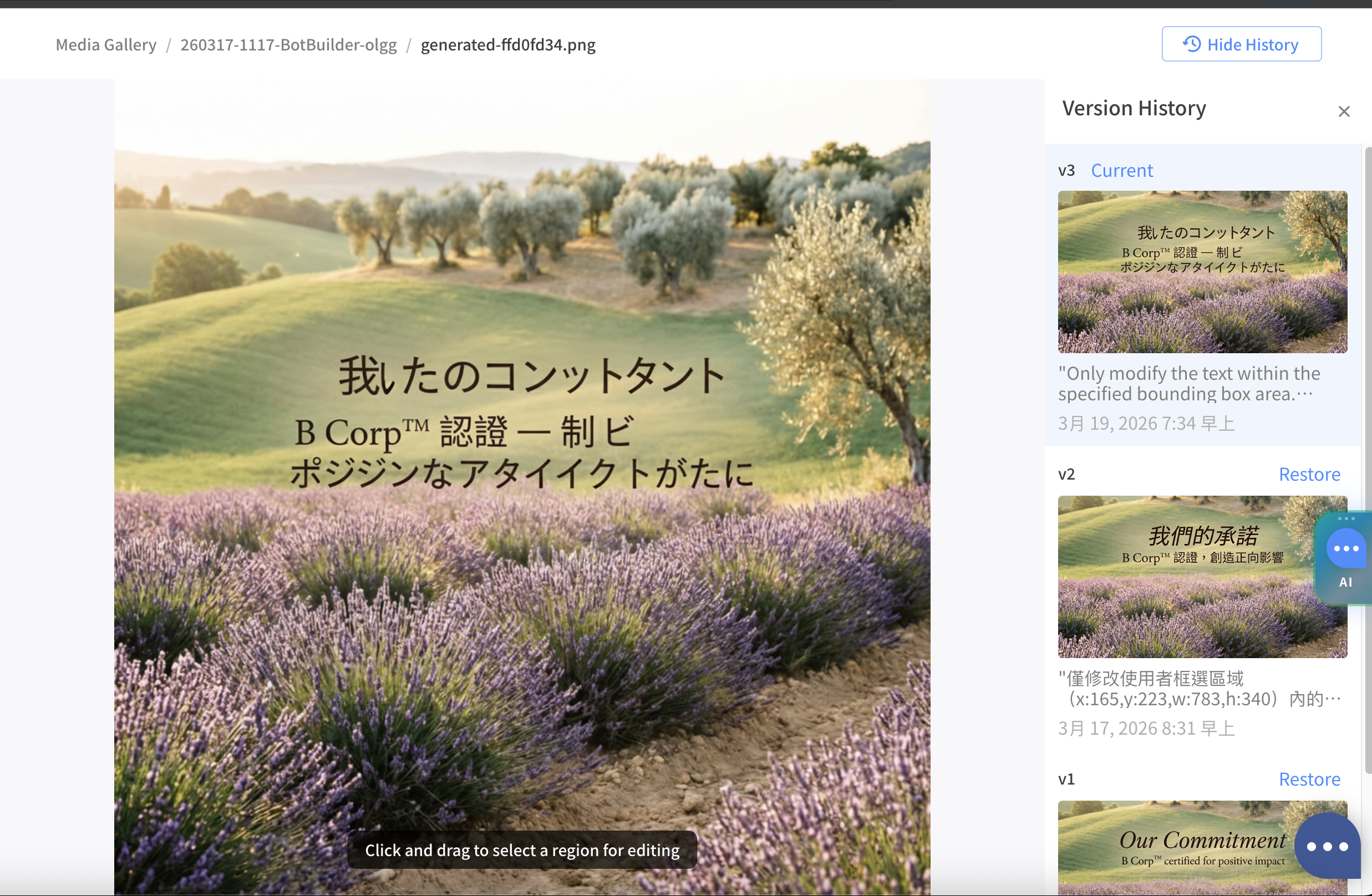
### 3. Version control and rollback

Every change to an image is recorded so you can return to any previous version at any time.

* Every AI edit automatically creates a new version, preserving all history
* View the creation time and AI prompt used for each version
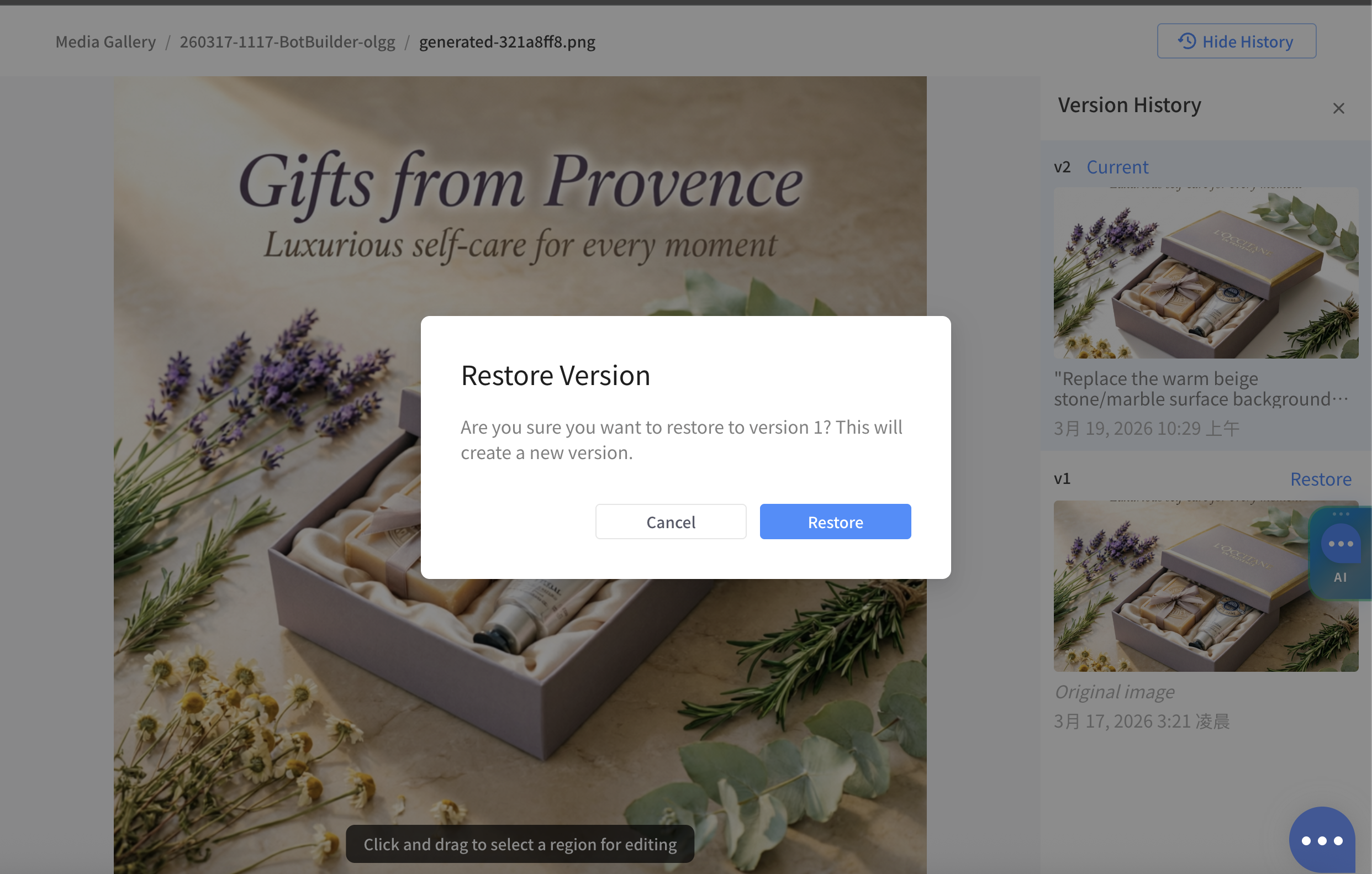
* Roll back to any historical version with one click (the rollback itself creates a new version, so existing history is never lost)

<div align="left"><figure><img src="https://2848678129-files.gitbook.io/~/files/v0/b/gitbook-x-prod.appspot.com/o/spaces%2F3u2I1osIy6mEi07X1z46%2Fuploads%2Fgit-blob-8f572429bd663be464a6b814322fe30c5ec51fb5%2Fomni-ai-gallery-03-version-list.png?alt=media" alt="" width="375"><figcaption><p>Version history list, showing the timestamp and AI prompt for each version</p></figcaption></figure></div>

<div align="left"><figure><img src="https://2848678129-files.gitbook.io/~/files/v0/b/gitbook-x-prod.appspot.com/o/spaces%2F3u2I1osIy6mEi07X1z46%2Fuploads%2Fgit-blob-1171755ef4d8355610ab9be4caa9e6c2c588e982%2Fomni-ai-gallery-04-version-detail.png?alt=media" alt="" width="375"><figcaption><p>Version details</p></figcaption></figure></div>

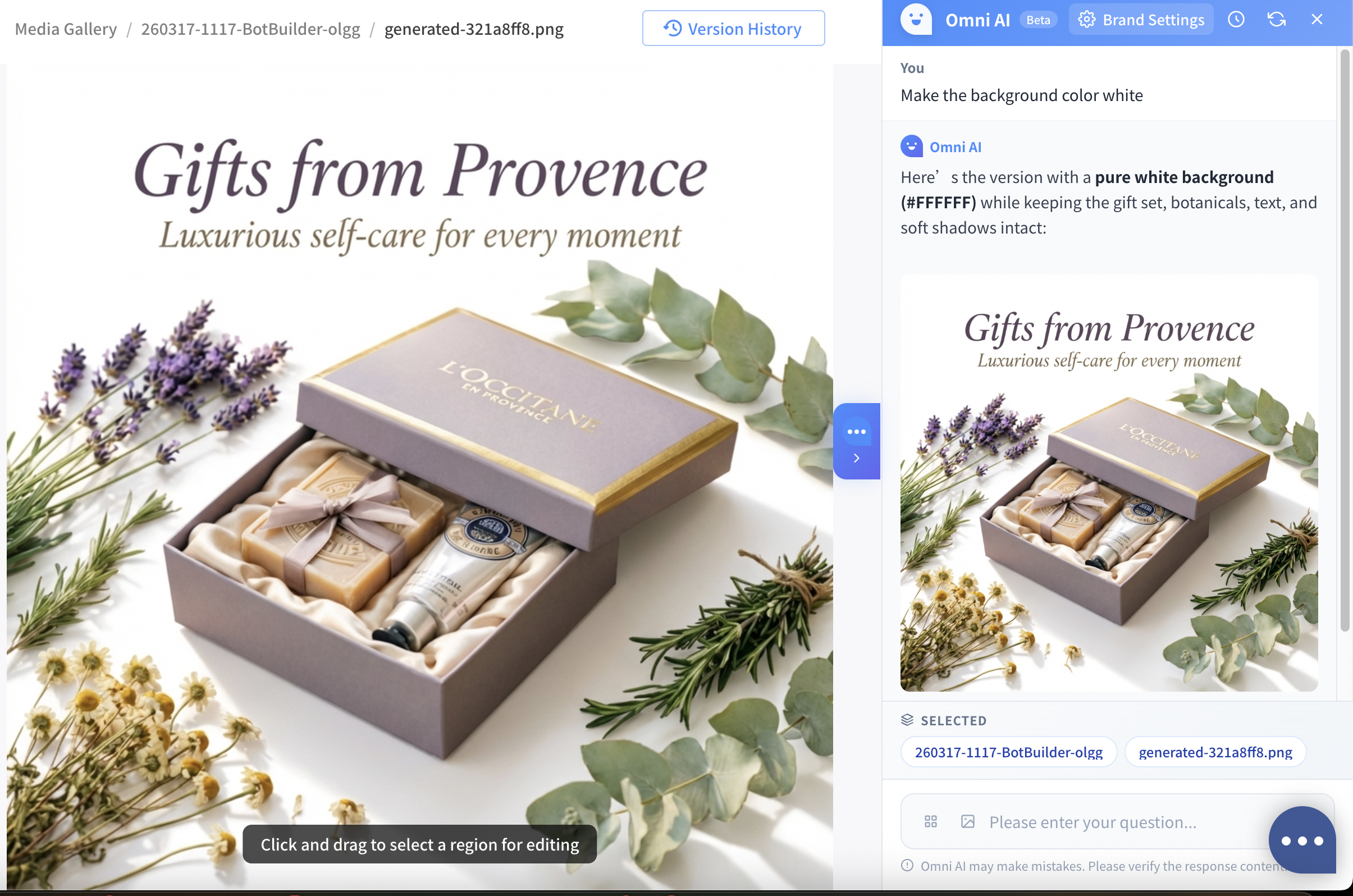
### 4. AI image generation and conversational editing

Generate new images or edit existing ones through a natural-language conversation.

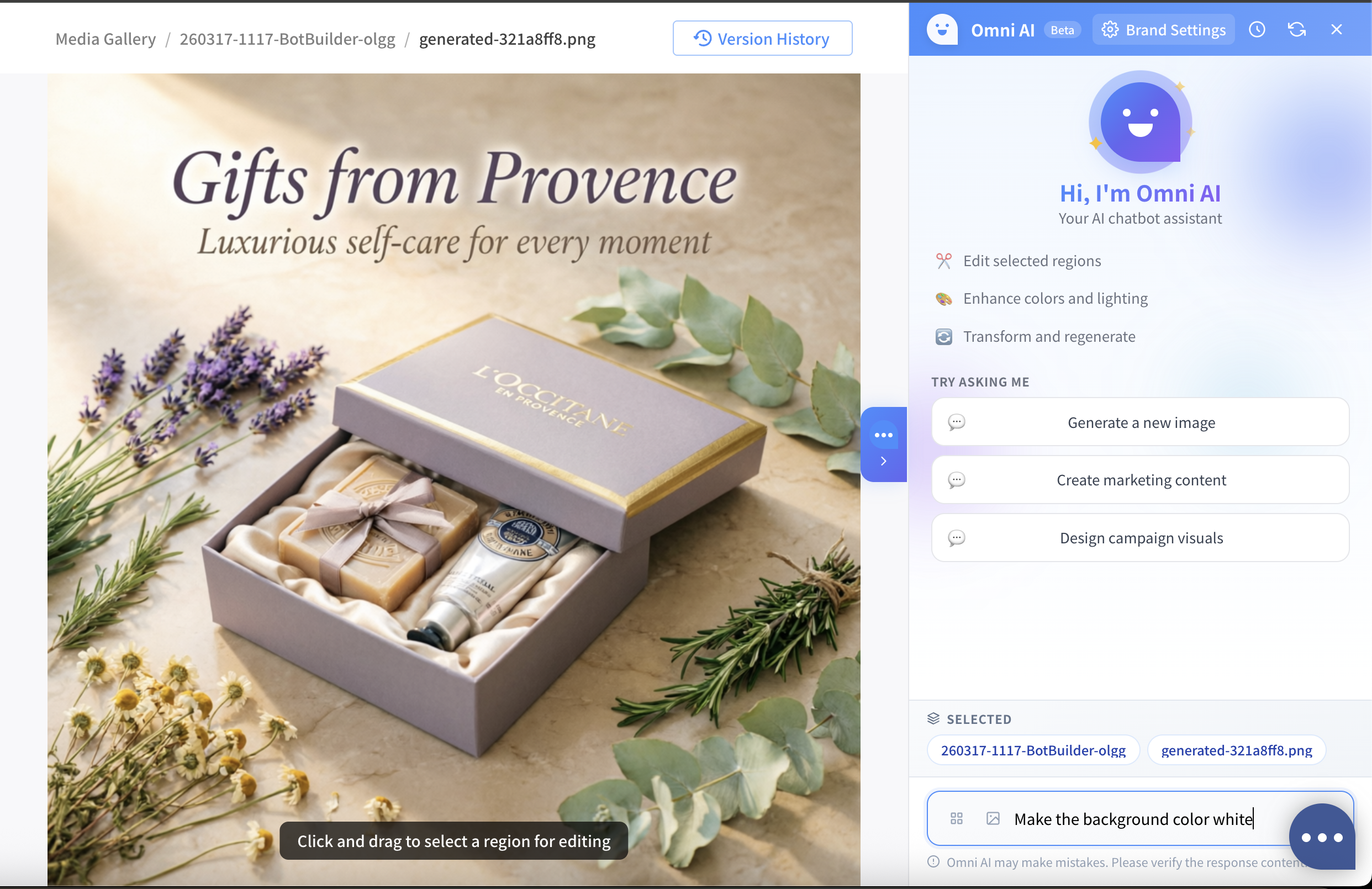
* Open the AI chat panel inside the Gallery and describe what you want in plain text
* Apply style adjustments or regenerate the **whole image**
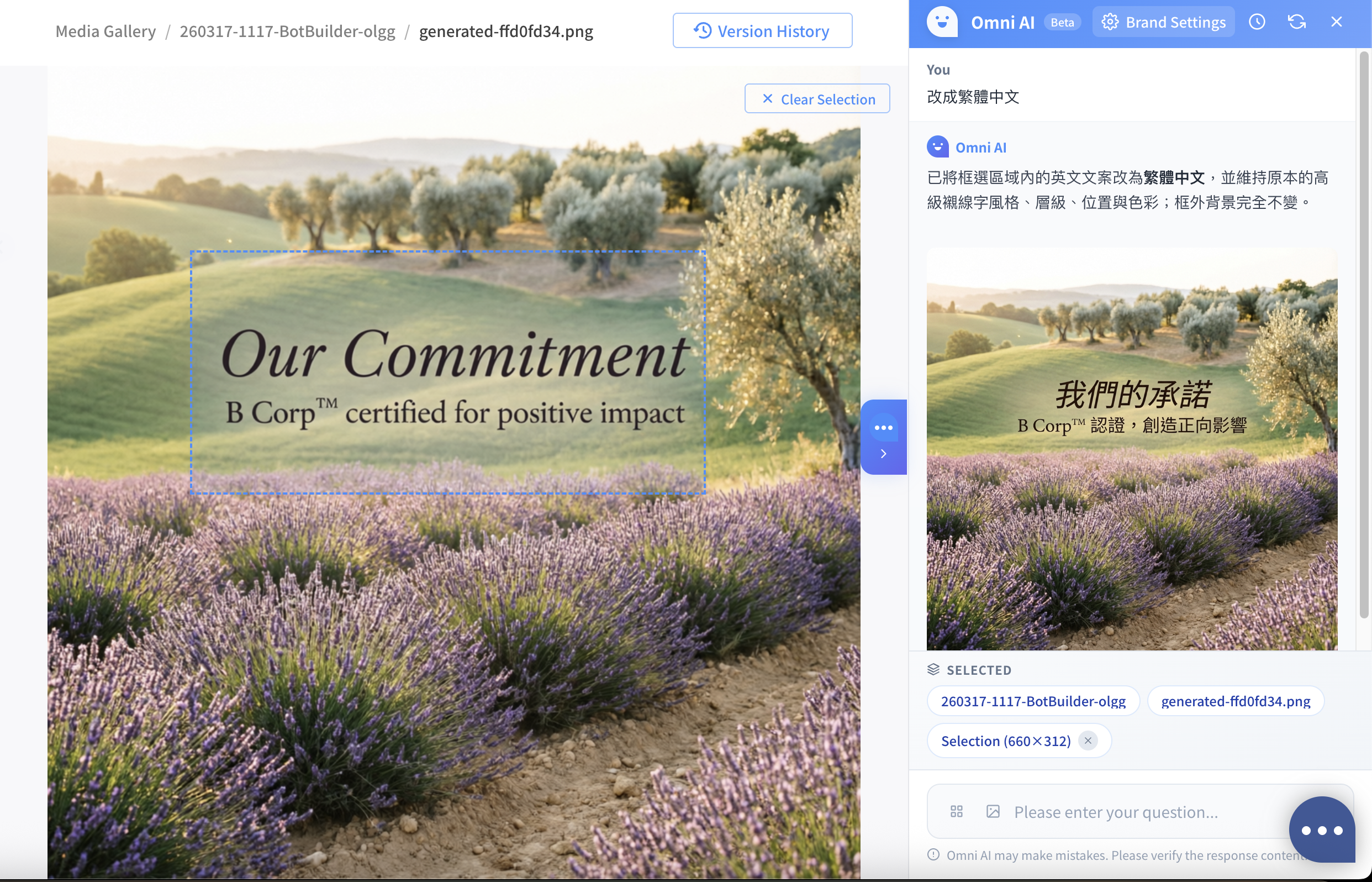
* Select a **specific region** of an image to edit only that area
* Provide a reference image to guide the AI toward a particular style
* The AI considers the current folder, the selected image, and the selected region together to give more accurate suggestions

**Example prompts:**

> "Replace the background of this product photo with a clean white background"
>
> "Add a promotion sticker in this area"

<div><figure><img src="https://2848678129-files.gitbook.io/~/files/v0/b/gitbook-x-prod.appspot.com/o/spaces%2F3u2I1osIy6mEi07X1z46%2Fuploads%2Fgit-blob-aff0a35a81e768dc9f2fee5a51a15ab4cbed5c59%2Fomni-ai-gallery-05-ai-chat-before.png?alt=media" alt=""><figcaption><p>AI chat panel — full-image editing mode (before)</p></figcaption></figure> <figure><img src="https://2848678129-files.gitbook.io/~/files/v0/b/gitbook-x-prod.appspot.com/o/spaces%2F3u2I1osIy6mEi07X1z46%2Fuploads%2Fgit-blob-67465efdc320e9a0f3440ffefc9e1bfad0159e34%2Fomni-ai-gallery-06-ai-chat-after.png?alt=media" alt=""><figcaption><p>AI chat panel — full-image editing mode (after)</p></figcaption></figure></div>

<figure><img src="https://2848678129-files.gitbook.io/~/files/v0/b/gitbook-x-prod.appspot.com/o/spaces%2F3u2I1osIy6mEi07X1z46%2Fuploads%2Fgit-blob-805382692ab9659bc8809b14c9b2b581694dd31f%2Fomni-ai-gallery-07-region-edit.png?alt=media" alt=""><figcaption><p>Selecting a specific region for localized editing</p></figcaption></figure>

***