> For the complete documentation index, see [llms.txt](https://docs.omnichat.ai/llms.txt). Markdown versions of documentation pages are available by appending `.md` to page URLs; this page is available as [Markdown](https://docs.omnichat.ai/en/features/omni-ai-add-on-feature/agent-studio.md).

# Agent Studio

Agent Studio is where you create your AI Agent.

## Agent Studio: Basic Introduction

In Agent Studio, you can create and configure your AI Agents — including assigning Knowledge Base documents, defining the scope of answerable topics, and setting the tone and wording style.

This ensures the Agent interacts with customers exactly as you expect, acting like a virtual version of yourself.

Please keep in mind: AI Agents will not automatically know what you want them to do. You need to give them clear and specific instructions on what to say and how to say it. The clearer your instructions are, the better the agents will perform.

{% hint style="info" %}

#### Access Roles:

Administrator, Manager, Customer Service Manager, Marketing
{% endhint %}

The Agent can be selected in the AI Agent Card module and linked to other bot modules. This page is solely for configuring the Agent's own settings.

In Agent Studio, Agents are categorized into **Omnichat AI Agent** and **Third-party Agent**:

1. [Omni AI Agent](https://app.gitbook.com/o/-L_qBouk_wijumBR7PT3/sites/site_0oD9U/s/3u2I1osIy6mEi07X1z46/~/edit/~/changes/598/features/omni-ai-add-on-feature/agent-studio#omni-ai-agent)
2. [Third-party AI Agent](https://app.gitbook.com/o/-L_qBouk_wijumBR7PT3/sites/site_0oD9U/s/3u2I1osIy6mEi07X1z46/~/edit/~/changes/598/features/omni-ai-add-on-feature/agent-studio#third-party-ai-agent)

If you have purchased an additional Third-party Agent, you can click the tabs to switch between pages:

<figure><img src="https://2848678129-files.gitbook.io/~/files/v0/b/gitbook-x-prod.appspot.com/o/spaces%2F3u2I1osIy6mEi07X1z46%2Fuploads%2FLNdjml9wmGEG4ARKesX4%2F%E8%9E%A2%E5%B9%95%E9%8C%84%E5%BD%B1%202026-10-02%20%E4%B8%8B%E5%8D%883.43.04.gif?alt=media&amp;token=cb83f0e2-c9a3-480c-8008-f169a1a6a896" alt=""><figcaption></figcaption></figure>

## Omni AI Agent

<figure><img src="https://2848678129-files.gitbook.io/~/files/v0/b/gitbook-x-prod.appspot.com/o/spaces%2F3u2I1osIy6mEi07X1z46%2Fuploads%2FAj2WWJT2VPpClIFAW41w%2F%E6%88%AA%E5%9C%96%202026-10-02%20%E4%B8%8B%E5%8D%883.39.31.png?alt=media&amp;token=51e27d4a-168a-47a4-9d27-d2dbd1c42539" alt=""><figcaption></figcaption></figure>

Omni AI Agents are divided into two types: Service Agent and Sales Agent.

* **Service Agent:**
  * Provides text-only Q\&A responses.
  * Answers based strictly on text documents uploaded to the Knowledge Base.
* **Sales Agent:**

  * Designed to recommend products.
  * Understands customer needs through interactive questioning.
  * **Replies using product carousel cards.**
  * Supports syncing the Product Feed to automatically fetch the latest data every day.

## Configuring a Service Agent

<figure><img src="https://2848678129-files.gitbook.io/~/files/v0/b/gitbook-x-prod.appspot.com/o/spaces%2F3u2I1osIy6mEi07X1z46%2Fuploads%2FYqXwVN6iRKgaAAufXlQu%2F%E6%88%AA%E5%9C%96%202026-10-02%20%E4%B8%8B%E5%8D%883.37.51.png?alt=media&amp;token=e09922ab-d868-45e7-b3dc-e5ac5bed7685" alt=""><figcaption></figcaption></figure>

1. **Agent Name** (required): The name will be shown in Agent Studio to help you distinguish between different Agents. It will also appear on the AI Agent card.

<figure><img src="https://2848678129-files.gitbook.io/~/files/v0/b/gitbook-x-prod.appspot.com/o/spaces%2F3u2I1osIy6mEi07X1z46%2Fuploads%2F7ZNtE7I8C3xtwfbQu2GD%2FAgent%20Name%20(edited.png?alt=media&amp;token=f0a543a7-5c0e-4598-95b6-606b67685063" alt="" width="375"><figcaption></figcaption></figure>

2. **Knowledge Document** (required):
   * You can select any previously uploaded documents from the knowledge base using the dropdown menu. There is no limit to the number of files you can select.
   * If a document is grayed out and cannot be selected, it means the file is still being processed or the processing has failed.
3. **Response Scope** (required): Set clear guidelines for what the Agent is allowed to respond to, including its scope, direction, and limitations. A well-defined scope helps improve the accuracy and relevance of the Agent's replies. You may include the following:
   * Role definition: Describe the main focus of the Agent’s responses. For example, assisting customers with account setup, answering technical questions, or recommending suitable products.
   * Service scope: List the types of topics the Agent can handle, such as order tracking, setup guides, product introductions, or user instructions.
   * Limitations: Clearly specify what the Agent should not answer. For example, it should not provide account numbers, personal information, medical diagnoses, or take actions on behalf of the user.
   * Avoid vague instructions: Do not simply write "Please refer to the knowledge base." Instead, include a clear topic and enough background context to help the Agent give focused responses.
   * Examples:
     * Help answer common questions about purchasing T-shirts from Omnichat Store, such as product details, order status, or return and exchange SOPs.
     * If the Agent handles questions about health supplements, it can suggest products based on the customer's health condition and lifestyle, such as items for digestion, sleep, or nutrition. However, it should not offer medical diagnoses or treatment advice. For serious symptoms or questions about medication, the Agent should refer the customers to doctors.
4. **Agent's Goal** (required): Set the main objectives of the Agent, such as assisting customers in choosing suitable solutions, answering technical questions, or providing real-time customer support. Clear objectives help the Agent deliver responses that meet expectations. You may include the following:
   * Tone and wording style: Specify the tone you want the Agent to use, such as polite, neutral, friendly, lively, or professional and concise.
   * Interaction: State whether the Agent should proactively ask questions and guide customers to provide information.
   * Specific responses: If needed, set a fixed sentence for the Agent to include after each reply. For example, "I hope the above information has been helpful to you."
   * Examples:
     * Begin a conversation by asking the customer about their current condition or issues they want to improve. Then, provide recommendations based on their response, briefly explaining the product's function or suitability.
     * Use natural and smooth wording to avoid sounding robotic. Avoid repetitive or overly formal phrasing.
     * Add a reminder at the end of each reply, such as: "If you would like to end the AI assistant flow, please type 'Talk to a human agent' in this chat and we will connect you to a support agent."
5. **Welcome Message** (optional): Welcome message is the first message the AI Agent sends when the AI Agent card is triggered and a conversation begins.
6. **Preview Conversation:** You can directly test the Agent's response content.
   * If there are no existing test conversations, the new settings will be applied immediately.
   * If there is an ongoing test conversation, adjusting the settings will block new message inputs. You must click "Restart" in the top right corner to begin a new round of testing.

<figure><img src="https://2848678129-files.gitbook.io/~/files/v0/b/gitbook-x-prod.appspot.com/o/spaces%2F3u2I1osIy6mEi07X1z46%2Fuploads%2FgdejlklcgM8O9eBWwSq1%2F%E8%9E%A2%E5%B9%95%E9%8C%84%E5%BD%B1%202026-10-02%20%E4%B8%8B%E5%8D%883.35.15.gif?alt=media&amp;token=c31b12e5-f492-4129-8b6a-87fcf4d1ac3e" alt=""><figcaption></figcaption></figure>

## Configuring a Sales Agent

<figure><img src="https://2848678129-files.gitbook.io/~/files/v0/b/gitbook-x-prod.appspot.com/o/spaces%2F3u2I1osIy6mEi07X1z46%2Fuploads%2F3Edb9X2W00nxVUSKp0io%2F%E6%88%AA%E5%9C%96%202026-09-22%20%E4%B8%8B%E5%8D%883.17.29.png?alt=media&amp;token=9c19ecdd-c5b3-4f8e-80be-173df807b244" alt=""><figcaption></figcaption></figure>

1. **Agent Name** (required): The name will be shown in Agent Studio to help you distinguish between different Agents. It will also appear on the AI Agent card.

<figure><img src="https://2848678129-files.gitbook.io/~/files/v0/b/gitbook-x-prod.appspot.com/o/spaces%2F3u2I1osIy6mEi07X1z46%2Fuploads%2FAPirGiYXYbIEMJPEXpUA%2FPickie%20Agent%20Studio%20(edited.png?alt=media&amp;token=0ac7ecbb-f497-4e4e-8035-a4d1292e92cd" alt="" width="563"><figcaption></figcaption></figure>

2. **Agent Include** (required):
   * You can select any previously uploaded documents from the **knowledge base** using the dropdown menu or [**synced Product Feeds**](https://app.gitbook.com/o/-L_qBouk_wijumBR7PT3/sites/site_0oD9U/s/3u2I1osIy6mEi07X1z46/~/edit/~/changes/598/features/omni-ai-add-on-feature/agent-studio#product-feed-and-knowledge-base-settings). There is no limit to the number of files you can select. *(For instructions on how to sync the Product Feed, please refer to the "Product Feed & Knowledge Base Settings" section below.)*
   * If a document is grayed out and cannot be selected, it means the file is still being processed or the processing has failed.
3. **Agent's Goal** (required): Set the main objectives of the Agent, such as assisting customers in choosing suitable solutions, answering technical questions, or providing real-time customer support. Clear objectives help the Agent deliver responses that meet expectations. You may include the following:
   * Tone and wording style: Specify the tone you want the Agent to use, such as polite, neutral, friendly, lively, or professional and concise.
   * Interaction: State whether the Agent should proactively ask questions and guide customers to provide information.
   * Specific responses: If needed, set a fixed sentence for the Agent to include after each reply. For example, "I hope the above information has been helpful to you."
   * Examples:
     * Begin a conversation by asking the customer about their current condition or issues they want to improve. Then, provide recommendations based on their response, briefly explaining the product's function or suitability.
     * Use natural and smooth wording to avoid sounding robotic. Avoid repetitive or overly formal phrasing.
     * Add a reminder at the end of each reply, such as: "If you would like to end the AI assistant flow, please type 'Talk to a human agent' in this chat and we will connect you to a support agent."
4. **Welcome Message** (optional): Welcome message is the first message the AI Agent sends when the AI Agent card is triggered and a conversation begins.
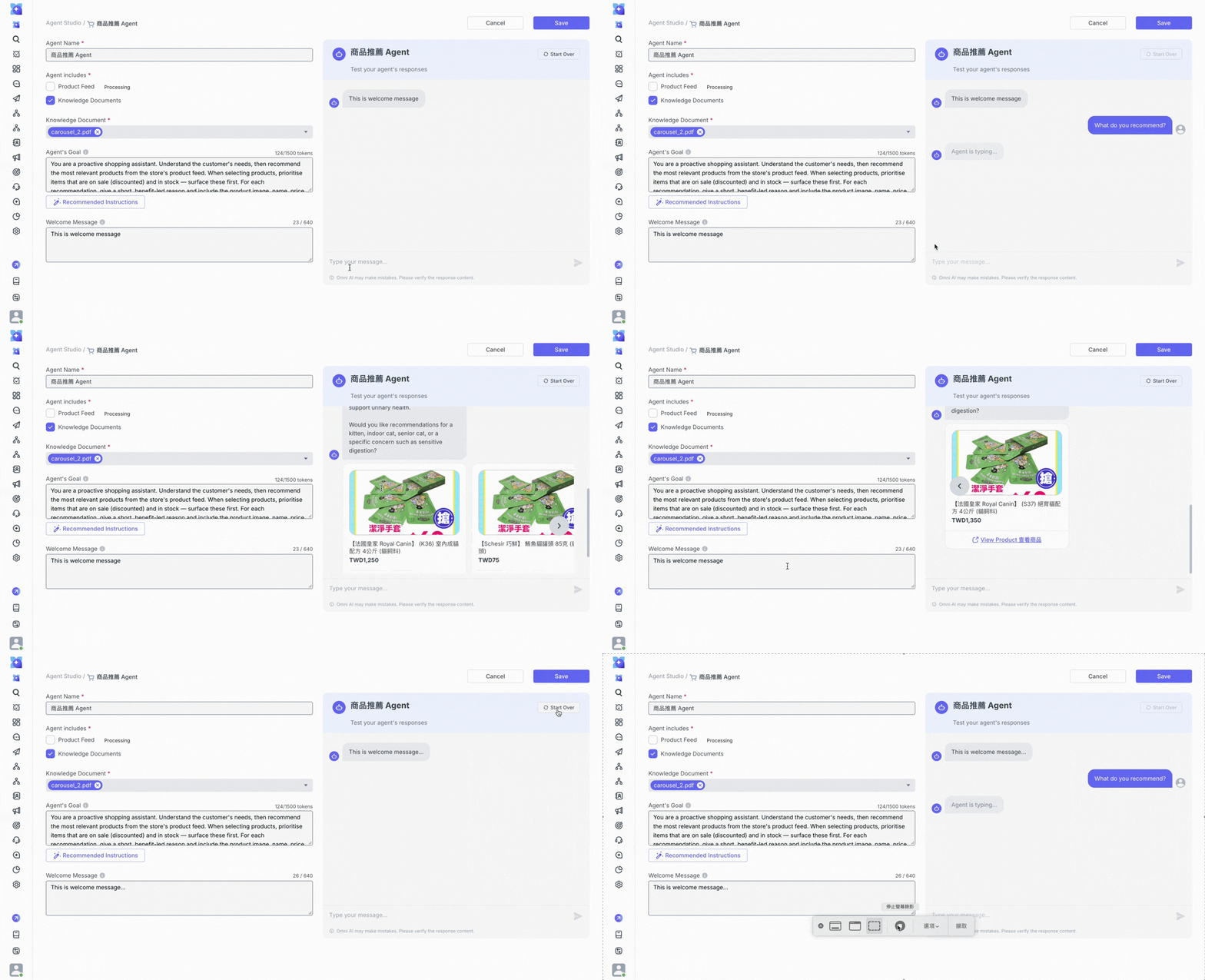
5. **Preview Conversation:** You can directly test the Agent's response content.
   * If there are no existing test conversations, the new settings will be applied immediately.
   * If there is an ongoing test conversation, adjusting the settings will block new message inputs. You must click "Restart" in the top right corner to begin a new round of testing.
   * The recommended results retrieved may not be exactly the same every time.

<figure><img src="https://2848678129-files.gitbook.io/~/files/v0/b/gitbook-x-prod.appspot.com/o/spaces%2F3u2I1osIy6mEi07X1z46%2Fuploads%2FsvBRqfrq4iT7akm6lgpQ%2F%E8%9E%A2%E5%B9%95%E9%8C%84%E5%BD%B1%202026-10-02%20%E4%B8%8B%E5%8D%883.32.55.gif?alt=media&amp;token=ab6ccc76-607e-41fa-b06e-b7a07eb52159" alt=""><figcaption></figcaption></figure>

## Product Feed & Knowledge Base Settings

How to set up the Product Feed in the Knowledge Base? To let the Sales Agent recommend products, you first need to sync the Product Feed to the Knowledge Base. There are 2 ways to do this:

1. **From the Settings page:** Go to the left menu Settings > Product Feed, and check "Sync to Knowledge Base". If you haven't uploaded a Product Feed before, you will see an option to check this sync box during the upload process.

<figure><img src="https://2848678129-files.gitbook.io/~/files/v0/b/gitbook-x-prod.appspot.com/o/spaces%2F3u2I1osIy6mEi07X1z46%2Fuploads%2Fm6CgnY69UQkOMBBOKnHQ%2F%E6%88%AA%E5%9C%96%202026-09-22%20%E4%B8%8A%E5%8D%8811.11.12.png?alt=media&amp;token=a2921965-14e3-46e6-a568-f255704c21c5" alt="" width="563"><figcaption></figcaption></figure>

2. **From the Knowledge Base page:** Go to the left menu Omni AI > Knowledge Base, click "Add Knowledge" in the top right corner, and select "Sync Product Feed" *(applicable only if you have previously uploaded a Product Feed)*.

<figure><img src="https://2848678129-files.gitbook.io/~/files/v0/b/gitbook-x-prod.appspot.com/o/spaces%2F3u2I1osIy6mEi07X1z46%2Fuploads%2F86HF004RWQKBeOsce5iH%2F%E8%9E%A2%E5%B9%95%E9%8C%84%E5%BD%B1%202026-09-22%20%E4%B8%8A%E5%8D%8811.15.18.gif?alt=media&amp;token=192277c0-bcd5-41b9-87a8-b2b53de64d4d" alt=""><figcaption></figcaption></figure>

### After the Product Feed is synced:

* Knowledge and pages categorized as "Product Feed" will appear in Knowledge Base Management.
* In Agent Studio > Sales Agent, you can check the box to use the "Product Feed".
* If the Product Feed content changes, the Knowledge Base will automatically re-sync to fetch the latest data daily.

<figure><img src="https://2848678129-files.gitbook.io/~/files/v0/b/gitbook-x-prod.appspot.com/o/spaces%2F3u2I1osIy6mEi07X1z46%2Fuploads%2FzB1q83ooifx7FxNgUVhe%2F%E6%88%AA%E5%9C%96%202026-09-22%20%E4%B8%8A%E5%8D%8811.25.31.png?alt=media&amp;token=f3079a43-f561-4b0d-86e8-0c44c2a8ec90" alt=""><figcaption></figcaption></figure>

### How to delete the Product Feed from the Knowledge Base?&#x20;

There are 2 ways to delete it:

1. **From the Settings page:** Go to the left menu Settings > Product Feed, and uncheck "Sync to Knowledge Base".
2. **From the Knowledge Base page:** Go to the left menu Omni AI > Knowledge Base, and click Action > Delete next to the Product Feed.

⚠️ Notice: <mark style="color:red;">**If a Sales Agent is currently using the Product Feed, you cannot delete it using the methods above.**</mark> You must first adjust the settings in the Sales Agent to uncheck the feed before deleting it.

## Sales Agent: Product Card Display

The Sales Agent supports replying with **product carousel cards**. The display format varies by channel:

* **Non-WhatsApp Channels (e.g., LINE, Messenger):** Displayed as product carousel cards, with the same format as standard shopping link cards.
* **WhatsApp Channel:** Due to WhatsApp's native interactive message format requirements, when recommending 2 to 10 products, a fixed text message will automatically appear above the carousel cards:
  * The system automatically selects the language based on your team's language settings (Currently supports Traditional Chinese, Simplified Chinese, English, and Japanese). ***Manual adjustment of this text is not supported.***
  * Example: English displays "Here are my recommendations:" ; Traditional Chinese displays "以下是推薦的商品：".

<figure><img src="https://2848678129-files.gitbook.io/~/files/v0/b/gitbook-x-prod.appspot.com/o/spaces%2F3u2I1osIy6mEi07X1z46%2Fuploads%2FxH14kVmunNcCzBagGhlE%2F%E6%88%AA%E5%9C%96%202026-09-22%20%E4%B8%8A%E5%8D%8811.22.06.png?alt=media&amp;token=063fb813-e98a-4799-b073-721ff471c23d" alt="" width="300"><figcaption></figcaption></figure>

## Omni AI Agent FAQs

### Q: What is the difference between uploading a Product Feed CSV file via "Knowledge Documents" and directly syncing the "Product Feed"?

A: Directly syncing the "Product Feed" provides higher coverage, allowing the AI to retrieve a larger number of products per search and recommend the most suitable items. Please note that in both methods, the AI searches based on "text relevance":

* If the number of products is massive, a single search may not cover all items.
* The recommended results may not be completely identical every time.

### Q: How is the Sales Agent billed? Does syncing the Product Feed cost Credits?

A:

* The Sales Agent is billed in the same way as the Service Agent, using Resolution as the billing unit.
* Syncing the Product Feed to the Knowledge Base does not deduct Credits and incurs no additional charges.

### Q: Can we track sales performance (conversions) for the product cards sent by AI?

A: Currently, tracking AI-driven sales performance is not supported. This feature is in our roadmap, so please stay tuned!

### Q: Does the Service Agent also support sending product carousel cards?

A: No, it does not. Currently, only the Sales Agent has the ability to send product carousel cards.

## Third-party AI Agent

1. [Raccoon AI](https://app.gitbook.com/o/-L_qBouk_wijumBR7PT3/sites/site_0oD9U/s/3u2I1osIy6mEi07X1z46/~/edit/~/changes/598/features/omni-ai-add-on-feature/agent-studio#raccoon-ai)
2. Bring Your Own AI

## Raccoon AI

{% hint style="info" %}
This is an add-on feature. Please contact your account consultant or reach out to us via our online messaging service for more details.
{% endhint %}

### Prerequisites

1. Complete Raccoon AI Integration: Ensure the initial connection is active. Refer to the [Raccoon AI Integration Guide](/en/features/she-ding/integrations/app-integrations/integrate-with-raccoon-ai.md) for details.
2. Request the "Header Auth" information from Raccoon AI.
3. Go to Developer Center > Open API Token in the Omnichat dashboard to create a new token. For detailed instructions, see the [Open API Token Management page](/en/features/she-ding/open-api-token-management.md).

### Step 1: Edit Agent Information

Navigate to Omni AI > Third-party AI Agent > Raccoon AI. Click the "..." button in the top right corner and select "Edit Agent".

<figure><img src="https://2848678129-files.gitbook.io/~/files/v0/b/gitbook-x-prod.appspot.com/o/spaces%2F3u2I1osIy6mEi07X1z46%2Fuploads%2FdwgdsYPUIgxe9cm6RpRl%2FScreenshot%202025-10-22%20at%205.11.27%E2%80%AFPM.png?alt=media&amp;token=dde79df8-fc96-499b-9419-f9ab66201cec" alt=""><figcaption></figcaption></figure>

### Step 2&#x20;

Click the "Set Up Now" button.

<figure><img src="https://2848678129-files.gitbook.io/~/files/v0/b/gitbook-x-prod.appspot.com/o/spaces%2F3u2I1osIy6mEi07X1z46%2Fuploads%2F7vvi1csqaSUOJAXiplhf%2FScreenshot%202025-10-22%20at%205.11.11%E2%80%AFPM.png?alt=media&amp;token=3d4a1a7a-b34b-4088-9397-db6db23f3847" alt=""><figcaption></figcaption></figure>

### Step 3

Enter the Open API Token you generated in the Omnichat and click "Bind Settings" button.

<figure><img src="https://2848678129-files.gitbook.io/~/files/v0/b/gitbook-x-prod.appspot.com/o/spaces%2F3u2I1osIy6mEi07X1z46%2Fuploads%2FojcCki744YO9AiVeD02n%2FScreenshot%202025-10-22%20at%205.09.31%E2%80%AFPM.png?alt=media&amp;token=31efcb68-4c5e-4f47-bc36-6875041a808a" alt=""><figcaption></figcaption></figure>

If you cannot find your token, visit the Developer Center > Open API Token page.

If you haven't created one yet, please follow the steps on the [Open API Token Management page](/en/features/she-ding/open-api-token-management.md).

<figure><img src="https://2848678129-files.gitbook.io/~/files/v0/b/gitbook-x-prod.appspot.com/o/spaces%2F3u2I1osIy6mEi07X1z46%2Fuploads%2FqoV3dIX71DBGI0wbg8l3%2FScreenshot%202025-10-22%20at%205.11.40%E2%80%AFPM.png?alt=media&amp;token=d3e6fef0-8539-47c6-85bf-6b7b9dfb1cd5" alt=""><figcaption></figcaption></figure>

### Step 4&#x20;

Once the token is entered, click the "+ Add URL" button.

<figure><img src="https://2848678129-files.gitbook.io/~/files/v0/b/gitbook-x-prod.appspot.com/o/spaces%2F3u2I1osIy6mEi07X1z46%2Fuploads%2Fn1qwpKnLJ0XUGd0jbVIz%2FScreenshot%202025-10-22%20at%205.45.16%E2%80%AFPM.png?alt=media&amp;token=d6113afd-d5f1-4e1d-9940-74823b809b36" alt=""><figcaption></figcaption></figure>

### Step 5&#x20;

Enter the URL of the website where your Omnichat web chat widget is installed, then click "Add and Bind" button.

<figure><img src="https://2848678129-files.gitbook.io/~/files/v0/b/gitbook-x-prod.appspot.com/o/spaces%2F3u2I1osIy6mEi07X1z46%2Fuploads%2Fjo1MxgoAWMjsFhuEZr9N%2FScreenshot%202025-10-22%20at%205.45.53%E2%80%AFPM.png?alt=media&amp;token=6fff0b0a-c9cd-4985-9ed3-0b6b95d0da2a" alt=""><figcaption></figcaption></figure>

You can find your widget URL under Channels > Webchat Plugin > Install Widget.

<figure><img src="https://2848678129-files.gitbook.io/~/files/v0/b/gitbook-x-prod.appspot.com/o/spaces%2F3u2I1osIy6mEi07X1z46%2Fuploads%2FjZQmz3nlEHlOzHb0nDOj%2F%E6%88%AA%E5%9C%96%202026-05-01%20%E4%B8%8B%E5%8D%883.17.38.png?alt=media&amp;token=d442ba38-1258-49fa-b1b9-f68108566d44" alt=""><figcaption></figcaption></figure>

### Step 6: Edit Webhook Information

Go back to Omni AI > Third-party AI Agent > Raccoon AI, click the "..." button, and select "Edit Webhook" button.

<figure><img src="https://2848678129-files.gitbook.io/~/files/v0/b/gitbook-x-prod.appspot.com/o/spaces%2F3u2I1osIy6mEi07X1z46%2Fuploads%2FvPvdaH29ZsBykgrryP0J%2FScreenshot%202025-10-22%20at%205.11.27%E2%80%AFPM.png?alt=media&amp;token=043e9913-49cf-46ea-925d-abcbba407e89" alt=""><figcaption></figcaption></figure>

### Step 7

Enter the Header Auth provided by Raccoon AI. If you do not have this information, please contact the Raccoon AI team for assistance.

<figure><img src="https://2848678129-files.gitbook.io/~/files/v0/b/gitbook-x-prod.appspot.com/o/spaces%2F3u2I1osIy6mEi07X1z46%2Fuploads%2FsbPSbnRne0DtXZLdLfoH%2FScreenshot%202025-10-22%20at%205.10.50%E2%80%AFPM.png?alt=media&amp;token=e72b03e5-d9c6-418c-b818-98e695f4734a" alt=""><figcaption></figcaption></figure>

With the basic configuration complete, you can now enable customer interactions by adding the AI Agent to your chatbot flows.

### Step 8

Go to Advanced Automation > Chatbot. Add an "AI Agent Card" and select "Raccoon AI". You can now use this module to interact with your customers!

<figure><img src="https://2848678129-files.gitbook.io/~/files/v0/b/gitbook-x-prod.appspot.com/o/spaces%2F3u2I1osIy6mEi07X1z46%2Fuploads%2FSavV4nIip4bvpqzKv7Bg%2FScreenshot%202025-10-22%20at%205.12.21%E2%80%AFPM.png?alt=media&amp;token=ea883092-d7fc-40a9-98f6-9c3a7766965f" alt=""><figcaption></figcaption></figure>

## Raccoon AI Agent FAQs

#### Q: On the LINE platform, will AI responses incur additional LINE messaging fees? Messaging fees depend on the AI provider's integration method:

* Omni AI: Messages are sent via the Reply API, so no additional LINE messaging fees are charged.
* Third-party AI Agents (e.g., Raccoon AI): Omnichat supports both Reply and Push APIs. Please check with your specific AI provider to confirm which API their feature uses to determine if LINE messaging fees will apply.

#### Q: A client has two different AI Agents in the Raccoon AI dashboard for different social channels. How should this be configured in Omnichat? Can we use the same AI Agent card?

* Omnichat communicates with Raccoon AI through a single unified URL, therefore, you will only see one Raccoon AI Agent in the Omnichat dashboard.
* The multi-agent logic is managed entirely on the Raccoon AI side. Since Omnichat cannot distinguish between them, you will use the same AI Agent card to trigger the interaction. Which specific agent responds will depend on the routing logic configured within Raccoon AI.

#### Q: Why is the AI not responding after I set up the Raccoon AI Agent? The conversation goes straight to the "Pending - Human" queue.

* First, ensure that the AI Agent card has been created and that there is a clear trigger path (e.g., via Auto-reply or a LINE Rich Menu button).
* If the trigger path is correct, check the "Conversation Logs":

  * If you see a record of "AI Agent seeking human assistance":\
    This means Omnichat triggered the AI correctly, but Raccoon AI proactively transferred the chat to a human. Please contact Raccoon AI support to troubleshoot. A common cause is that the Agent’s operating scope (specific social channels or URLs) has not been authorized in the Raccoon AI dashboard.
  * If there is no record of "AI Agent Started" or "AI Agent Triggered":\
    This indicates that Omnichat did not successfully trigger the AI. Please contact your Omnichat Consultant or our Online Support Team for further investigation.

  <div><figure><img src="https://2848678129-files.gitbook.io/~/files/v0/b/gitbook-x-prod.appspot.com/o/spaces%2F3u2I1osIy6mEi07X1z46%2Fuploads%2FEFcr0EkJD5mP62uG73M0%2FScreenshot%202026-06-04%20at%206.11.54%E2%80%AFPM.png?alt=media&amp;token=c073742f-a968-42e3-a8a8-130dc27342e9" alt=""><figcaption></figcaption></figure> <figure><img src="https://2848678129-files.gitbook.io/~/files/v0/b/gitbook-x-prod.appspot.com/o/spaces%2F3u2I1osIy6mEi07X1z46%2Fuploads%2FeQ0KrZzJKabOq1rRZT9W%2FScreenshot%202026-06-04%20at%206.11.25%E2%80%AFPM.png?alt=media&amp;token=490cac4d-e592-44b7-91d8-baf742cc12de" alt=""><figcaption></figcaption></figure></div>

#### Q: Is the Raccoon AI Satisfaction Survey the same as the Omnichat Satisfaction Survey?

No, they are different. The Raccoon AI survey is independent of Omnichat’s built-in satisfaction survey features, they operate as separate functions.

## Build AI Agent Cards in Chatbot 2.0

### Step 1: Create a New AI Agent Card and Select an AI Agent

Create a New AI Agent Card

<figure><img src="https://2848678129-files.gitbook.io/~/files/v0/b/gitbook-x-prod.appspot.com/o/spaces%2F3u2I1osIy6mEi07X1z46%2Fuploads%2F7kFio23ZNy7Atzz6hIg8%2Fcreate%20a%20card%20%EF%BC%88edited.png?alt=media&amp;token=dbeb0676-4b4e-4065-be9f-3001d34c09c3" alt=""><figcaption></figcaption></figure>

Select the AI Agent you created in Agent Studio from the dropdown menu.

<figure><img src="https://2848678129-files.gitbook.io/~/files/v0/b/gitbook-x-prod.appspot.com/o/spaces%2F3u2I1osIy6mEi07X1z46%2Fuploads%2FjaDT47Wm1doQhfJxDeF0%2Fselect%20an%20agent%20(edited.png?alt=media&amp;token=3e9ffa2d-d255-4e45-9aa5-e063720a8c68" alt=""><figcaption></figcaption></figure>

### Step 2: Preview and Edit the AI Agent Card

<figure><img src="https://2848678129-files.gitbook.io/~/files/v0/b/gitbook-x-prod.appspot.com/o/spaces%2F3u2I1osIy6mEi07X1z46%2Fuploads%2Fp1eL0ZBpfHP6qy1GuQOm%2Fpreview%20ai%20agent%20card.png?alt=media&amp;token=ed813523-9aaa-4e4a-b579-592b8fd0a09d" alt=""><figcaption></figcaption></figure>

The AI Agent card consists of three parts:

1. **Welcome Message**: This is the welcome message you set for the card in Agent Studio. If you need to make changes, go back to the card in [Agent Studio](https://console.omnichat.ai/agent-studio/list) to adjust the content.
2. **If the question is within the responding scope**:
   * The card shows the Agent name you set in Agent Studio.
   * The right section presents the Welcome Message, Response Scope, and Agent's Goal you set up for that Agent in Agent Studio.
   * Click "View" in the upper right corner of the Settings section to open the Agent's settings page.
   * When a customer's question matches the response scope, the system will reply based on the content of the selected knowledge document.
3. **If the question is beyond the responding scope**:
   * The bot can only connect to a live chat card.
   * If the customer's question is beyond the response scope or they request a human agent, the bot will move to the "Live chat" card, and the conversation will switch to "Open - Live chat".

### Step 3: Add the AI Agent Card to the Service Flow

You can place the AI Agent card at points in the flow that suit your needs.

For example, you might add it to a button action in a text card under the welcome message or in the rich menu, so customers can tap it to start an AI Q\&A.

You can also set it to trigger with a keyword auto-reply. This way, you can create flexible interactions that suit your needs.

### AI Agent Card Trigger Process & Conversation Handling

<figure><img src="https://2848678129-files.gitbook.io/~/files/v0/b/gitbook-x-prod.appspot.com/o/spaces%2F3u2I1osIy6mEi07X1z46%2Fuploads%2FcqQfomqOo7LjmKNQ8b9Q%2F%E6%B5%81%E7%A8%8B%E5%9C%96%EF%BC%88%E8%8B%B1%E6%96%87.png?alt=media&amp;token=f2b1f3a7-d990-4592-8f09-ef5da724b87f" alt=""><figcaption></figcaption></figure>

1. How to Trigger the AI Agent?
   * New / Closed / Pending-Bot \
     → *(Triggered by customer-defined conditions to activate the AI Agent Card)* \
     → AI Customer Service
   * If a conversation is already bound to an OMO sales, the conversation must first be closed to exit the "Progress" status. Only then can the AI Agent be successfully triggered
2. Rules After Entering AI Chat
   * If the Chatbot Card is activated via a "Click" action, it will trigger normally. *(e.g., clicking a button on a chatbot card, clicking a LINE Rich Menu, etc.)*
   * Keyword auto-assign rules will still work. If the conditions are met:
     * The conversation will move to "My Cases - Progress".
     * The AI Agent will stop sending automatic replies.
   * Messages sent by the customer will NOT trigger "Auto-Reply" messages at this time. *(This feature is expected to be supported in 2026 Q3)*
3. How to Exit AI Chat
   * AI Agent → Closed
     * Manual Close: Closed manually by a team member.
     * API Trigger: Closed via a 3rd-party AI Agent calling the Open API - Close case.
   * AI Agent → Progress (Human Agent)
     * Manual Follow-up: Followed up by a human agent.
     * Add WhatsApp contacts and create the conversation.
     * Auto-Assign Triggered:
       * Keywords matching the auto-assign rule.
       * Triggered via a 3rd-party AI Agent calling the Open API - Auto Assign.
   * AI Agent → Live Chat
     * Omni AI Escalation: When the AI determines it cannot answer a question (out of scope or unable to understand the query), it automatically prompts a text card with live agent button. Once the customer clicks the button, the conversation is transferred to live chat.
     * API Trigger: Transferred via a 3rd-party AI Agent calling the Open API - To human API.

### Notes on Using AI Agent Cards

The following features do not support using or responding to content with an AI Agent card. To ensure the card works properly, avoid adding it to these modules.

<table><thead><tr><th width="269.859375">Feature Type </th><th>Setup Path</th></tr></thead><tbody><tr><td>Chatbot</td><td><ul><li>Conditional Reply Card</li><li>User Input Card</li><li>Call an API Card</li></ul></td></tr><tr><td>Social Subscription Management</td><td><ul><li><p>OmniLink</p><ul><li><p>Successful Integration</p><ul><li>Source Channel Message</li><li>Target Channel Message</li></ul></li><li>Integration Failure Message</li></ul></li><li><p>Website Binding</p><ul><li>Message to customers for successful opt-in</li></ul></li><li><p>Mobile Phone Binding (LINE only)</p><ul><li>Complete binding message</li><li>Already bound message</li><li>Failed to bind message</li></ul></li></ul></td></tr><tr><td>Advanced Automation</td><td>Customer Journey → Message node</td></tr><tr><td>Game Modules</td><td>Auto messages to winners who received the prize</td></tr><tr><td>Saved Reply</td><td><ul><li>AI Agent card cannot be saved as saved reply.</li><li>Saved reply that contains an AI Agent card cannot be sent.</li></ul></td></tr><tr><td>Auto-close Conversation Reminder Message</td><td>Conversation Setting → Action → Edit Content → Reminder message</td></tr><tr><td>OMO</td><td><ul><li><p>OMO Setting → Store Management</p><ul><li>Auto Close Conversation → Custom by store</li><li>Binding Message Setting → Binding Success Message → Custom by store</li></ul></li><li>Staff Binding Settings → Binding Success Message → Additional Message</li></ul></td></tr><tr><td>Facebook Persistent Menu</td><td>Channels → Frequently Used Messages → Persistent Menu</td></tr><tr><td>Facebook / Instagram Comment Reply</td><td>Reply Settings → Private Message Reply</td></tr></tbody></table>