> For the complete documentation index, see [llms.txt](https://docs.omnichat.ai/llms.txt). Markdown versions of documentation pages are available by appending `.md` to page URLs; this page is available as [Markdown](https://docs.omnichat.ai/en/features/marketing/chatbot-2.0/omni-ai-message-flow-builder.md).

# Omni AI Message Flow Builder

Build or edit chatbot flows in the Message Flow Builder editor by describing what you want in natural language. Available platforms: Web Chat Plugin, Facebook, Instagram, LINE, WhatsApp.

Omni AI Message Flow Builder is an AI chat interface built into the Message Flow Builder editor. Describe what you need in plain text and the AI will create or edit chatbot blocks and cards for you, dramatically lowering the barrier to bot design and speeding up flow creation.

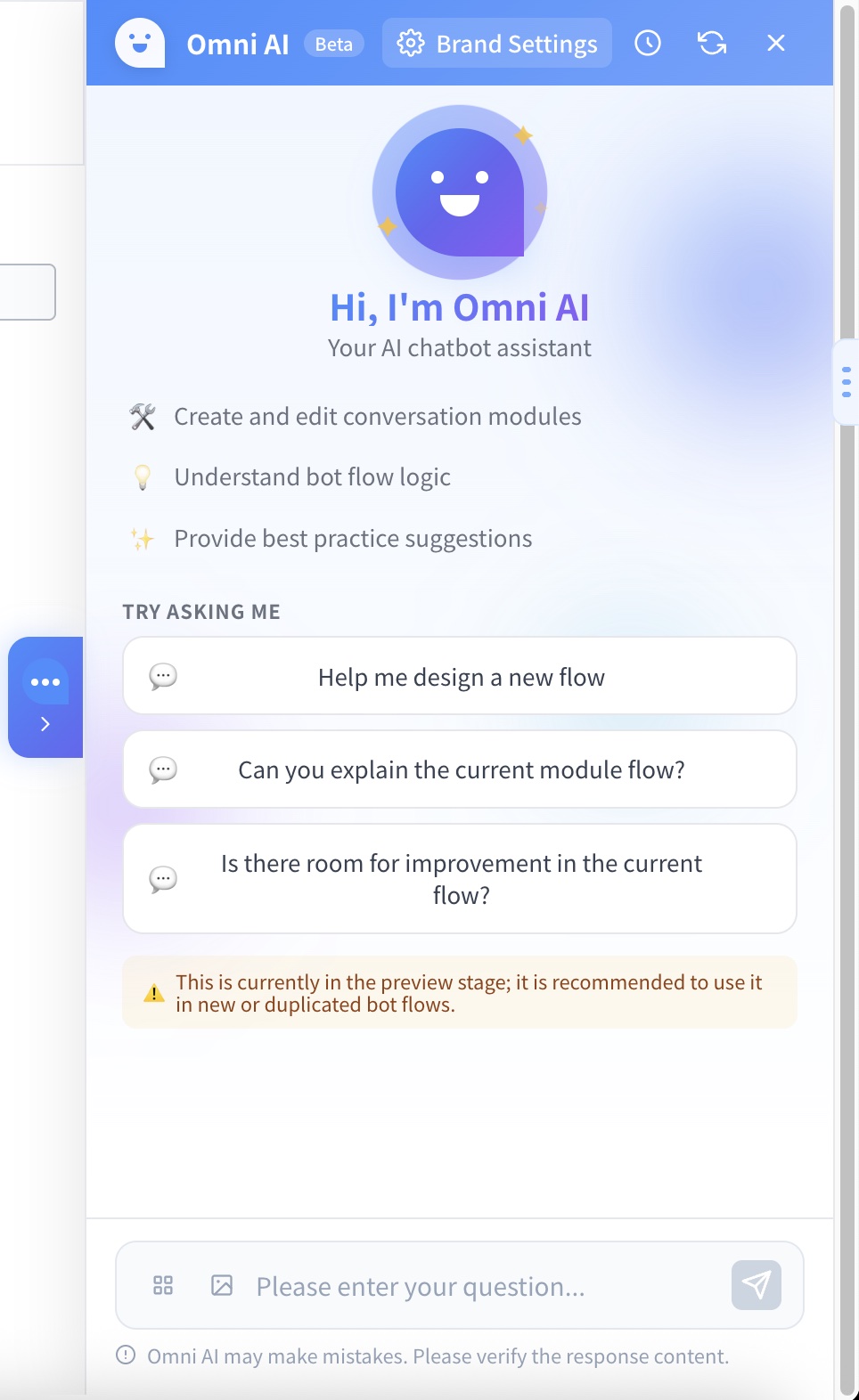
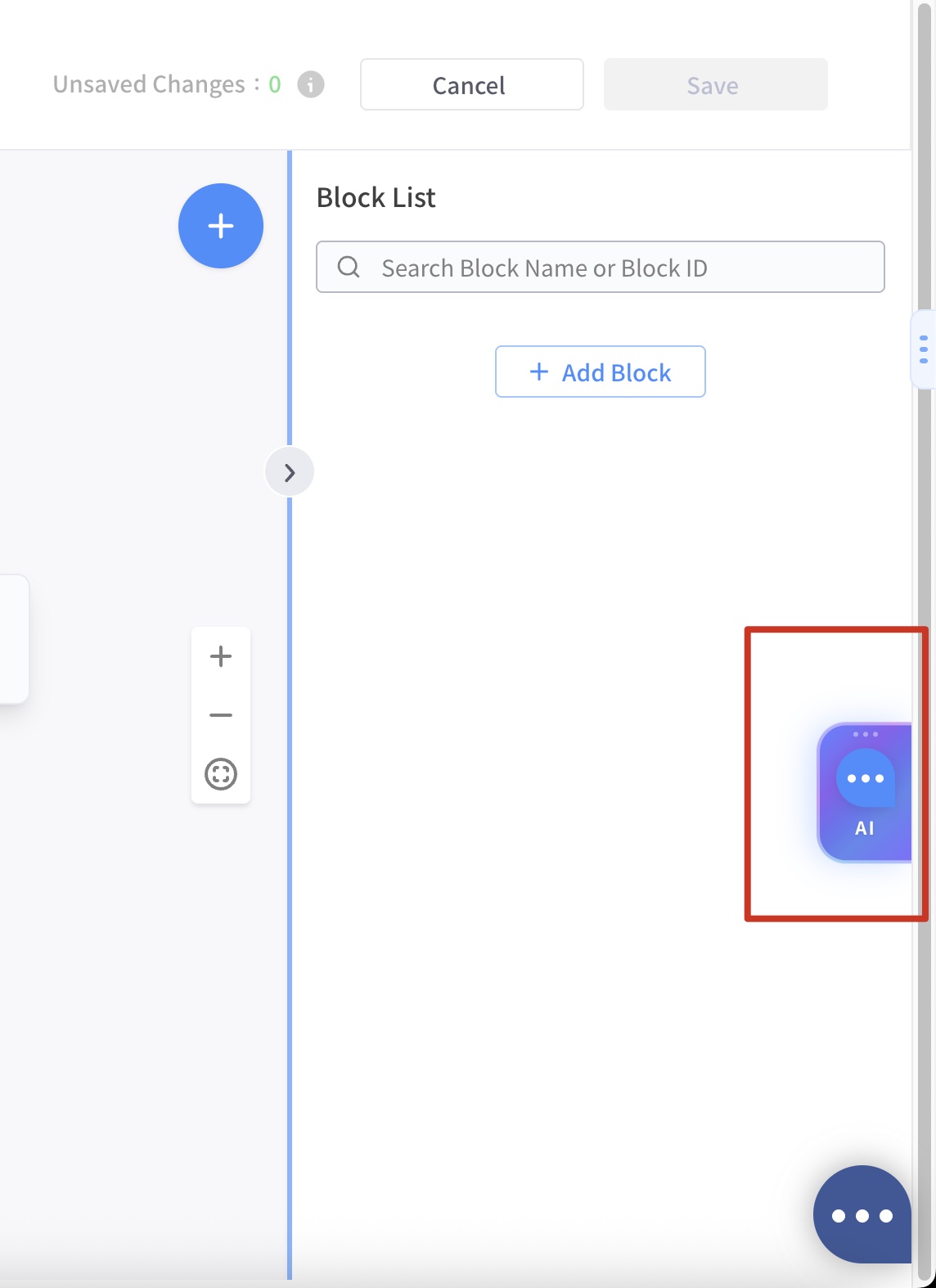
Click the floating AI assistant button on the right side of the Message Flow Builder to open the chat panel. The panel includes suggested questions, a conversation area, and an input box.

<div><figure><img src="https://2848678129-files.gitbook.io/~/files/v0/b/gitbook-x-prod.appspot.com/o/spaces%2F3u2I1osIy6mEi07X1z46%2Fuploads%2Fgit-blob-75dd05e0e3ad9497a1d9804e19885a84ce59a9b0%2Fomni-ai-01-toggle-button.jpg?alt=media" alt=""><figcaption><p>The floating AI assistant button on the right side of Message Flow Builder</p></figcaption></figure> <figure><img src="https://2848678129-files.gitbook.io/~/files/v0/b/gitbook-x-prod.appspot.com/o/spaces%2F3u2I1osIy6mEi07X1z46%2Fuploads%2Fgit-blob-c9e8c8cb131955d6ade3165840fbfeb99dace2d2%2Fomni-ai-02-panel-overview.jpg?alt=media" alt=""><figcaption><p>The AI chat panel with suggested questions and an input box</p></figcaption></figure></div>

***

### Design bot flows with natural language

Describe the bot flow you want and the AI will automatically create the corresponding message cards.

* Generates multiple cards at once (text, buttons, carousel, conditional reply, and more)
* When you select an existing card, the AI uses that card as context for edits
* Supports creating, updating, and deleting cards
* Cards generated by the AI are identical to manually built ones and can be edited directly in Message Flow Builder

**Example prompt:**

> "Help me design a flow to generate leads"

### Supported card types

The AI can automatically generate the following card types. Platform support matches the existing Chatbot 2.0 cards:

| Card                | Available platforms                                  | Notes                                           |
| ------------------- | ---------------------------------------------------- | ----------------------------------------------- |
| Text card           | Web Chat Plugin, Facebook, Instagram, LINE, WhatsApp | -                                               |
| Photo card          | Web Chat Plugin, Facebook, Instagram, LINE, WhatsApp | -                                               |
| Video card          | Facebook, Instagram, LINE, WhatsApp                  | -                                               |
| Carousel card       | Web Chat Plugin, Facebook, Instagram, LINE, WhatsApp | -                                               |
| Image carousel card | LINE                                                 | -                                               |
| Image map card      | LINE                                                 | You need to add the action links manually       |
| User input card     | Web Chat Plugin, Facebook, Instagram, LINE, WhatsApp | -                                               |
| Coupon card         | Facebook, Instagram, LINE, WhatsApp                  | Lists the 10 most recent coupons to choose from |
| Quick reply card    | Web Chat Plugin, Facebook, Instagram, LINE, WhatsApp | -                                               |
| Conditional reply   | Web Chat Plugin, Facebook, Instagram, LINE, WhatsApp | -                                               |

The AI can also help manage:

* **Tags:** A tag folder named `OmniAI` is created, and the AI selects existing tags from the folder or adds new ones automatically.
* **Custom attributes:** Only adding new custom attributes is supported.

{% hint style="info" %}
The following cards are **not yet supported** for AI generation and still need to be configured manually in Message Flow Builder: AI Agent card, third-party AI Agent card, Facebook Marketing Message subscription card, scheduled auto-reply, Call an API, OmniLink, receipt campaign, auto-assign card, WhatsApp Flow, sticker pack, and abandoned cart message card.
{% endhint %}

### AI image generation and editing

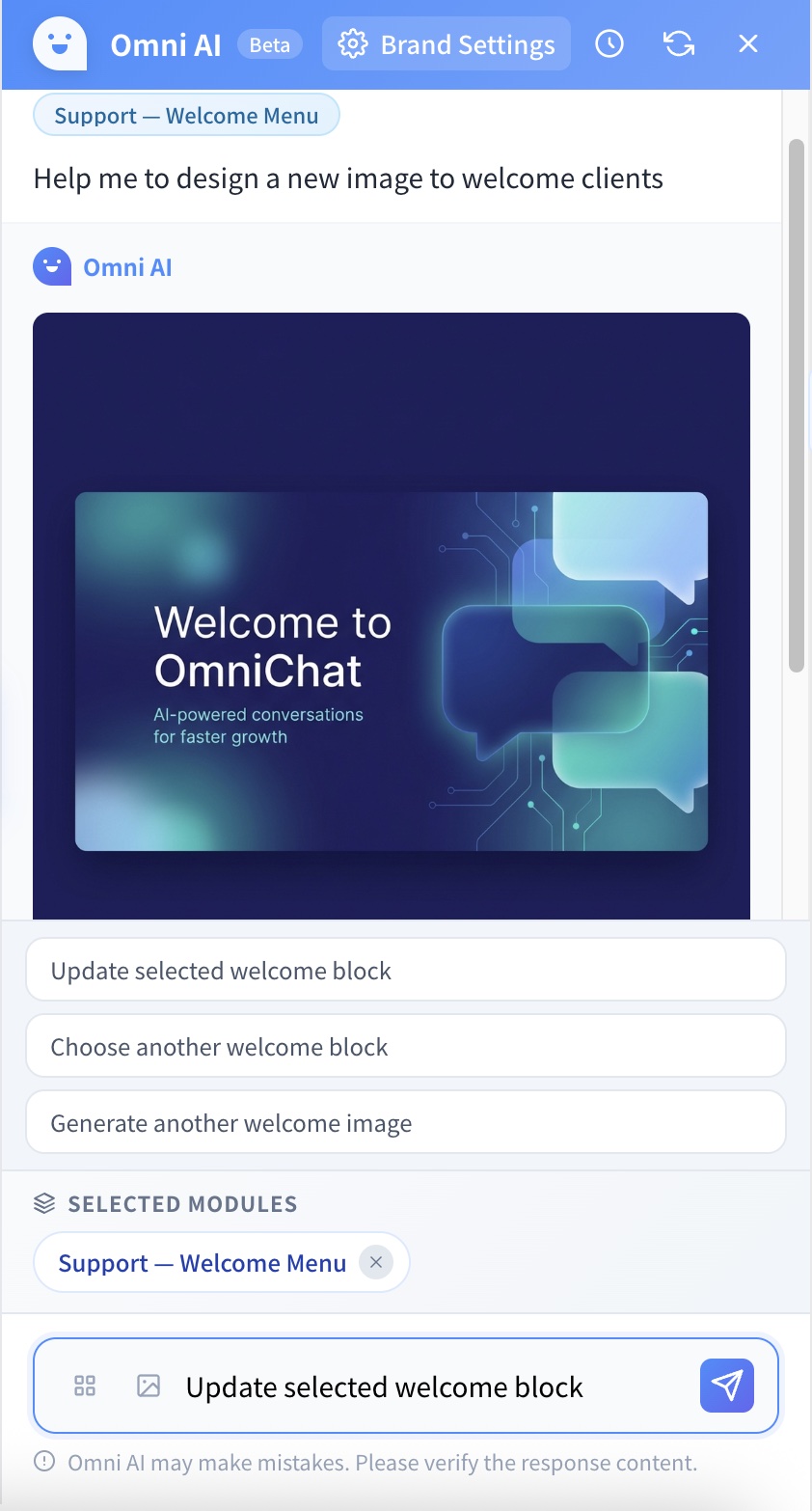
You can ask the AI to generate or edit images directly in the chat, and the result can be applied to bot message cards immediately.

* **Image generation:** Describe the scene in text and the AI generates an image
* **Image editing:** Upload an existing image and describe what to change
* **Image analysis:** The AI analyzes the image content and provides suggestions
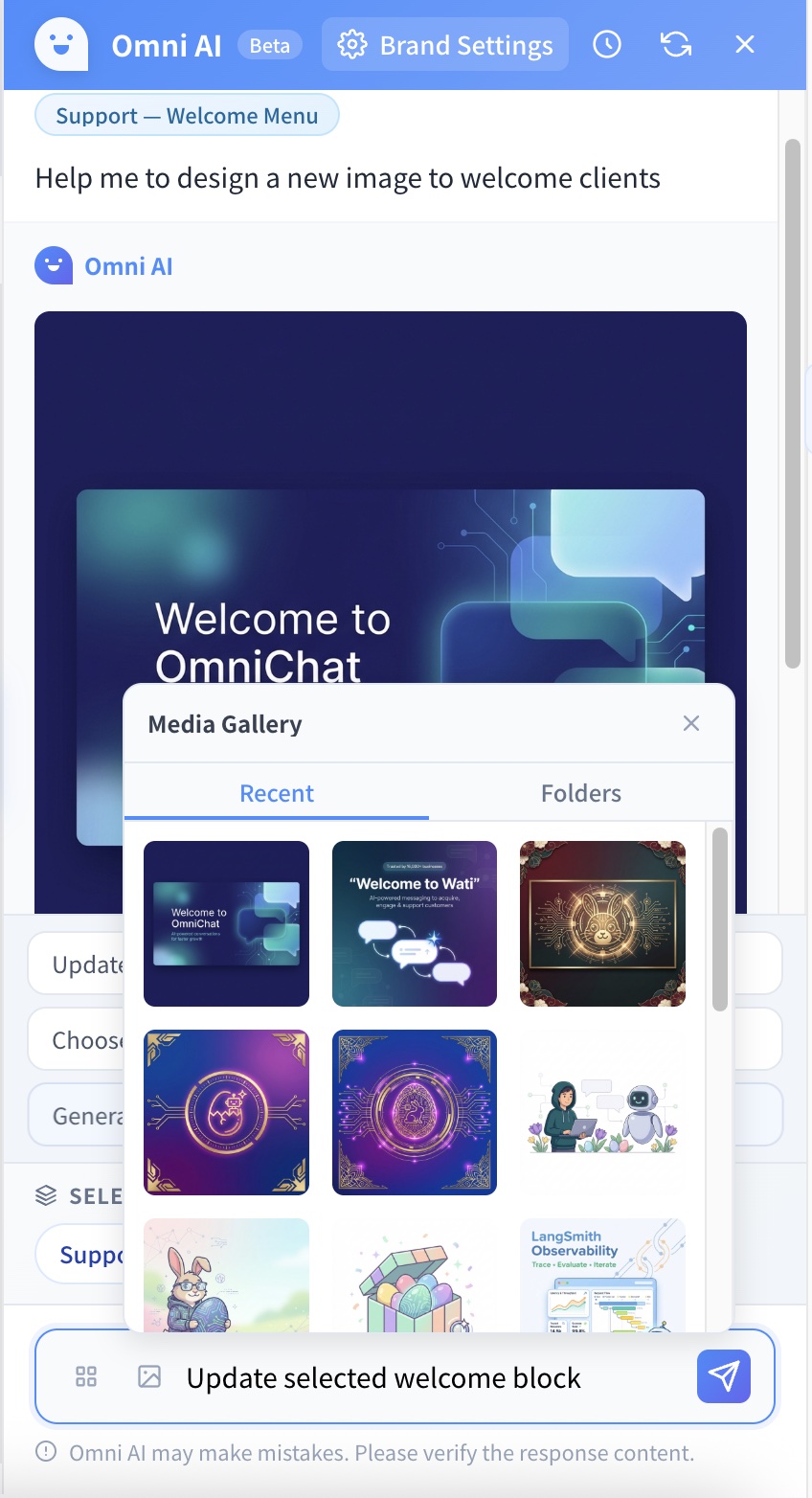
* **Multiple ways to attach:** Drag and drop, paste from clipboard, or pick from the Media Gallery

{% hint style="info" %}
All uploaded or generated images are normalized to 1040px width at JPEG quality 90, and only `image/*` MIME types are accepted.
{% endhint %}

<div><figure><img src="https://2848678129-files.gitbook.io/~/files/v0/b/gitbook-x-prod.appspot.com/o/spaces%2F3u2I1osIy6mEi07X1z46%2Fuploads%2Fgit-blob-9c15779422a3358755a1f033348ba94d0e8158b7%2Fomni-ai-09-image-generation.jpg?alt=media" alt=""><figcaption><p>After describing the request, the AI generates the image and suggests follow-up actions</p></figcaption></figure> <figure><img src="https://2848678129-files.gitbook.io/~/files/v0/b/gitbook-x-prod.appspot.com/o/spaces%2F3u2I1osIy6mEi07X1z46%2Fuploads%2Fgit-blob-d1813ad4b0efbfc227e2213947b3485585dcbb9d%2Fomni-ai-10-image-attachment-media-gallery.jpg?alt=media" alt=""><figcaption><p>Browse recently generated images or media assets in folders via the Media Gallery</p></figcaption></figure></div>

### Brand settings

Once your brand information is set, AI-generated content automatically matches your brand voice.

| Setting             | Description                                                             |
| ------------------- | ----------------------------------------------------------------------- |
| **Brand intro**     | A description of the brand and its core values                          |
| **Industry**        | Industry tags (multi-select)                                            |
| **Target audience** | Target audience tags (multi-select)                                     |
| **Tone**            | Brand communication style (multi-select, e.g. formal, casual, creative) |

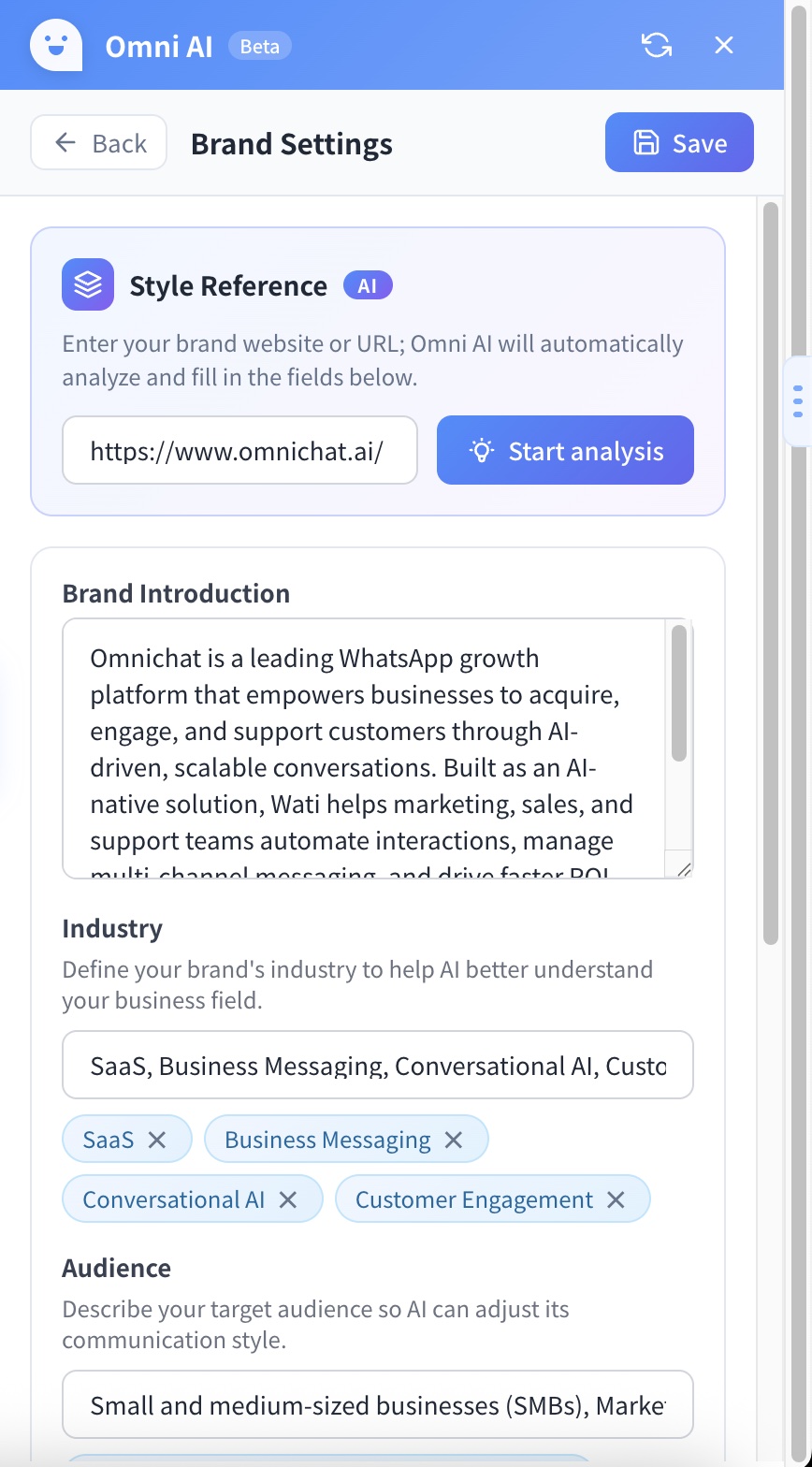
**Auto-analysis:** Enter a brand URL and the AI automatically extracts and fills in the fields above, so you don't have to enter them by hand.

{% hint style="warning" %}
Brand settings are **shared across the team**. When any member updates them, the Brand Settings every team member sees are updated as well.
{% endhint %}

<div align="left"><figure><img src="https://2848678129-files.gitbook.io/~/files/v0/b/gitbook-x-prod.appspot.com/o/spaces%2F3u2I1osIy6mEi07X1z46%2Fuploads%2Fgit-blob-f62ac6cbbbbcdb99a82e8f315d4c7ef6930f2a52%2Fomni-ai-11-brand-settings.jpg?alt=media" alt="" width="280"><figcaption><p>Brand Settings panel: enter a brand URL and the AI auto-fills brand intro, industry, target audience, and more</p></figcaption></figure></div>

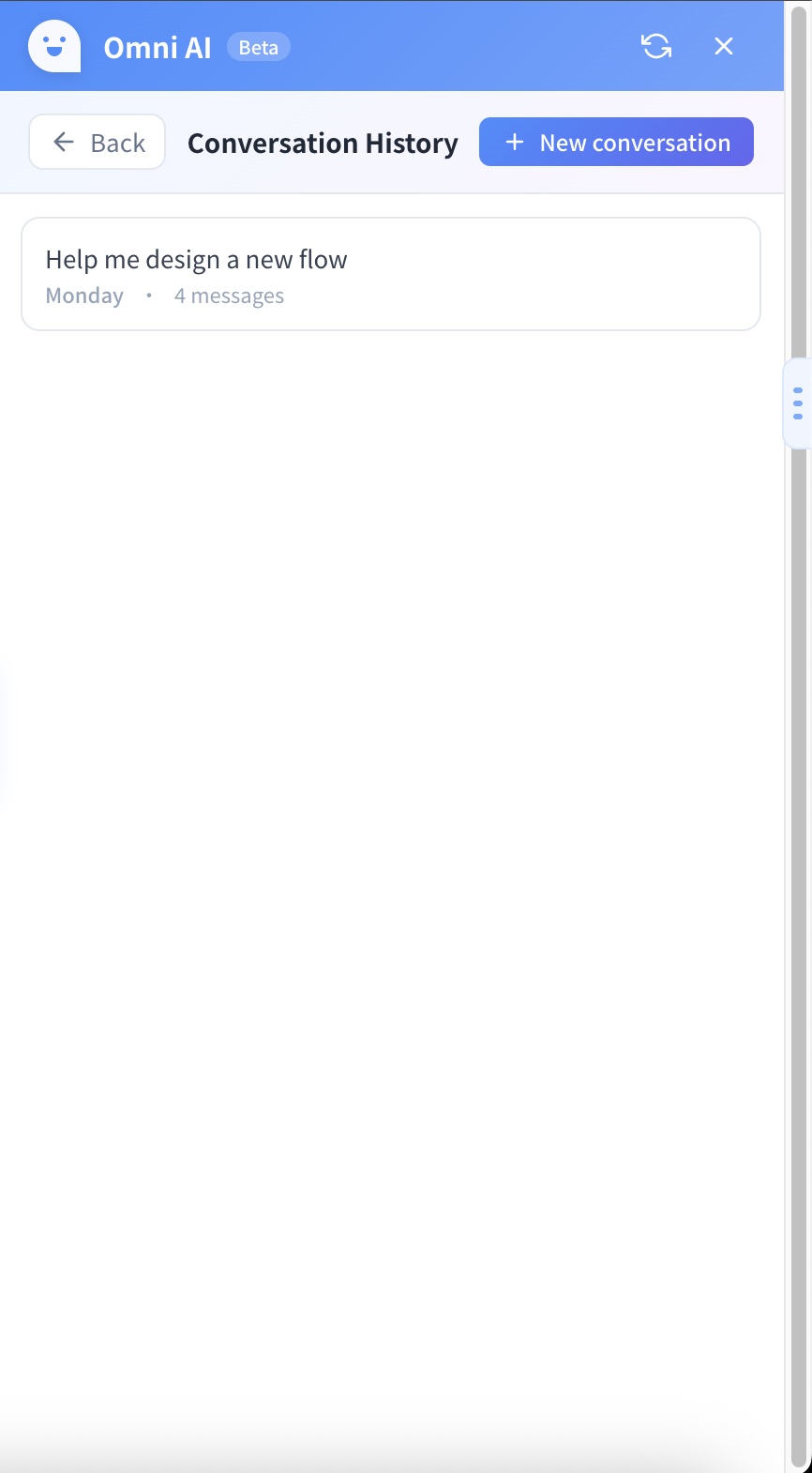
### Conversation history

Every AI conversation is saved, so you can revisit or continue a previous design discussion at any time.

* The history list shows a preview, message count, and last activity time
* Load a past conversation to continue with the previous context
* Delete conversations you no longer need
* 20 conversations per page with paginated loading

{% hint style="info" %}
**Conversation history is private to you:** history records belong only to the currently logged-in user. Team members cannot see one another's conversations.
{% endhint %}

{% hint style="warning" %}

1. Searching and exporting conversation history is not supported at this time
2. Deleting a conversation is permanent and cannot be undone
3. Sent messages cannot be edited or deleted
   {% endhint %}

<div align="left"><figure><img src="https://2848678129-files.gitbook.io/~/files/v0/b/gitbook-x-prod.appspot.com/o/spaces%2F3u2I1osIy6mEi07X1z46%2Fuploads%2Fgit-blob-3bcf67470eb2d742addfb34489600bc8d8593d29%2Fomni-ai-13-conversation-history.jpg?alt=media" alt="" width="280"><figcaption><p>The Conversation History panel showing previews, timestamps, and message counts</p></figcaption></figure></div>

### Real-time streaming responses

AI responses stream in real time for a smooth conversational experience.

* Shows what the AI is currently doing in real time (e.g. "Creating card", "Generating image")
* Text appears progressively, so you don't have to wait for the full response
* Suggested follow-up questions appear once the response completes, guiding the next step

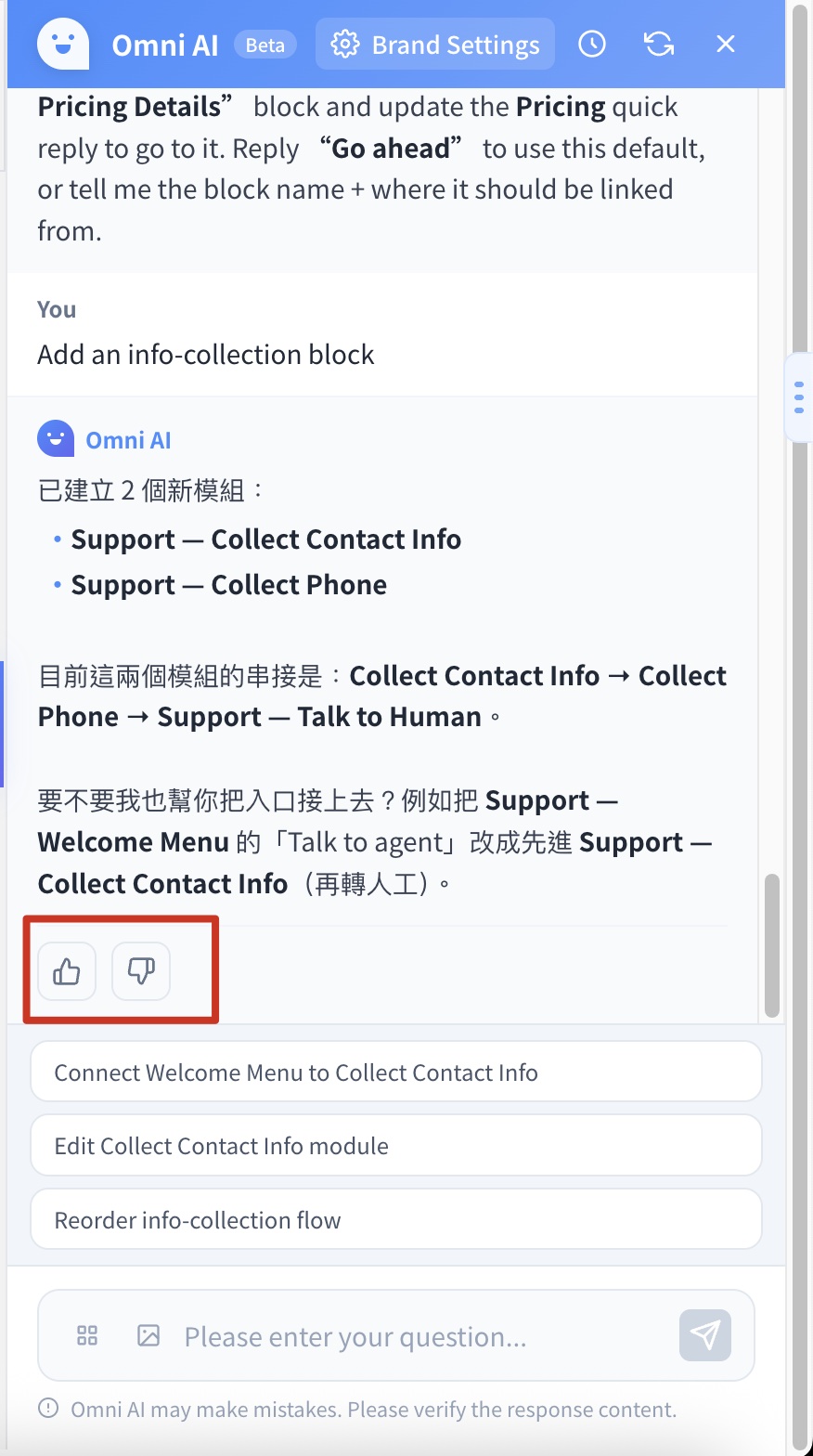
### Feedback

Rate AI responses to help improve generation quality over time.

* A thumbs-up / thumbs-down button appears under some responses
* Feedback is sent immediately and does not interrupt the current conversation

<div align="left"><figure><img src="https://2848678129-files.gitbook.io/~/files/v0/b/gitbook-x-prod.appspot.com/o/spaces%2F3u2I1osIy6mEi07X1z46%2Fuploads%2Fgit-blob-272b64bea2c80a815f04127fb530ade63f2838e8%2Fomni-ai-14-feedback-buttons.jpg?alt=media" alt="" width="280"><figcaption><p>Thumbs-up / thumbs-down feedback buttons and suggested questions below an AI response</p></figcaption></figure></div>

### Interface and interaction

| Feature                    | Description                                                                                                 |
| -------------------------- | ----------------------------------------------------------------------------------------------------------- |
| **Draggable toggle**       | The floating button on the right can be dragged up and down; the position is remembered                     |
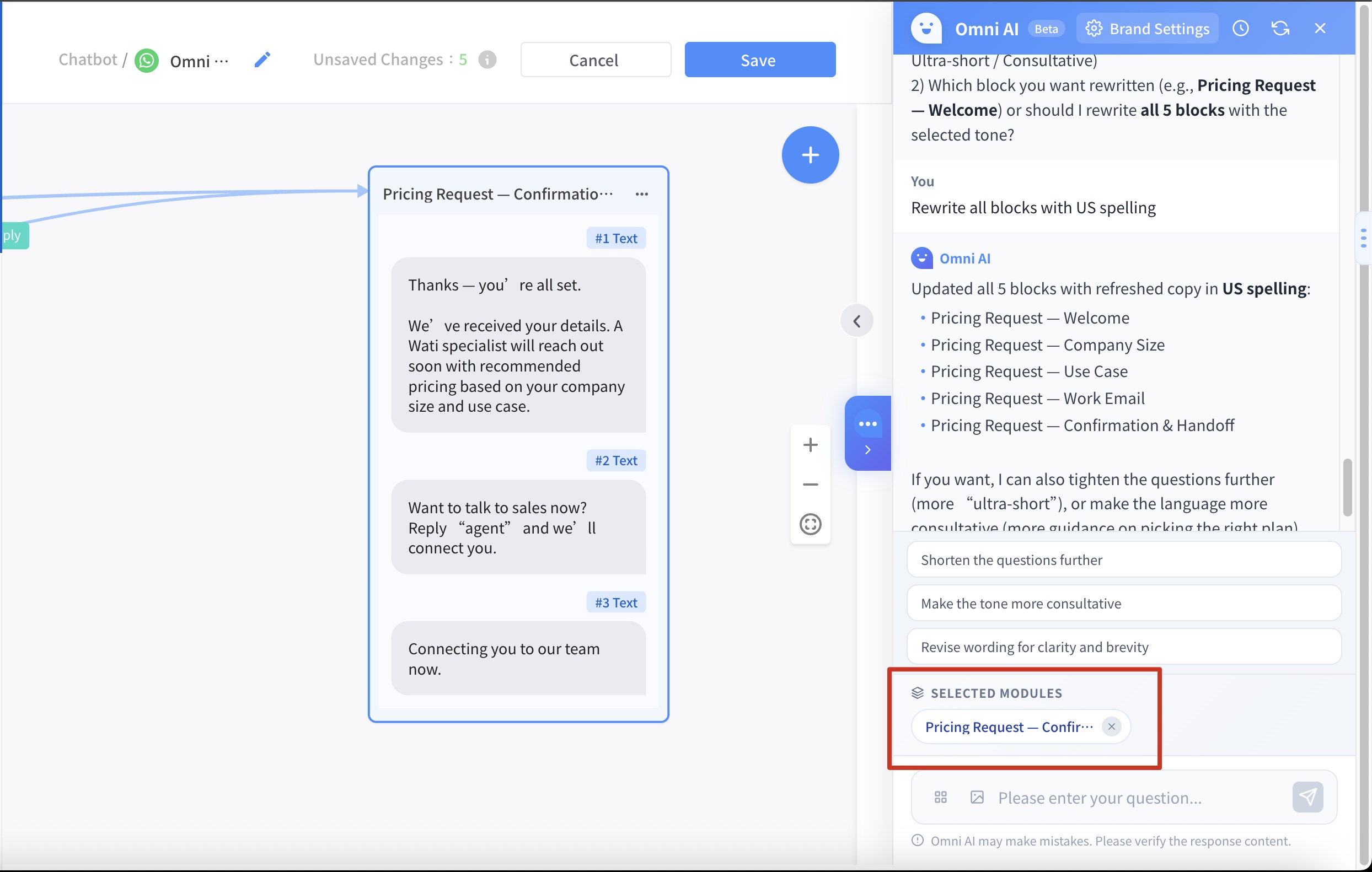
| **Card selection context** | Selecting a card in Message Flow Builder automatically sets it as the conversation context for the AI panel |
| **Auto-focus on cards**    | After the AI creates or edits a card, the canvas scrolls to it and highlights it                            |
| **Multi-language UI**      | The interface supports Traditional Chinese, Simplified Chinese, English, and more                           |
| **Media Gallery**          | Browse recently generated images or media assets stored in folders                                          |

After a card is selected, the AI chat window shows `Selected`, and the AI can edit that card directly.

<figure><img src="https://2848678129-files.gitbook.io/~/files/v0/b/gitbook-x-prod.appspot.com/o/spaces%2F3u2I1osIy6mEi07X1z46%2Fuploads%2Fgit-blob-41ac91fd28636482a77a37e71b2096f317396634%2Fomni-ai-07-block-selection-context.jpg?alt=media" alt=""><figcaption><p>Once a card is selected, the AI chat window shows "Selected" and the AI can edit it directly</p></figcaption></figure>

***

### FAQ

<details>

<summary>Can I manually edit cards generated by AI?</summary>

Yes. Cards generated by the AI are identical to manually created cards and can be edited directly in Message Flow Builder.

</details>

<details>

<summary>What do brand settings affect?</summary>

Brand settings let the AI understand your brand style. Generated text content automatically matches the configured industry, target audience, and tone.

</details>

<details>

<summary>Are conversation records saved?</summary>

Yes. All conversation records are stored on the server and can be loaded from the history panel at any time.

</details>

<details>

<summary>Why can't I send a message?</summary>

When the bot contains cards that fail validation, the AI feature is temporarily disabled. Fix the cards marked with errors before using it.

</details>

<details>

<summary>What happens if a conversation goes on for a long time?</summary>

When the conversation approaches the context window limit, the system triggers auto-compact: it summarizes earlier turns and continues the conversation, so the conversation can keep going. The AI may, however, lose some early details.

</details>