Omni AI Message Flow Builder
Build or edit chatbot flows in the Message Flow Builder editor by describing what you want in natural language. Available platforms: Web Chat Plugin, Facebook, Instagram, LINE, WhatsApp.
Omni AI Message Flow Builder is an AI chat interface built into the Message Flow Builder editor. Describe what you need in plain text and the AI will create or edit chatbot blocks and cards for you, dramatically lowering the barrier to bot design and speeding up flow creation.
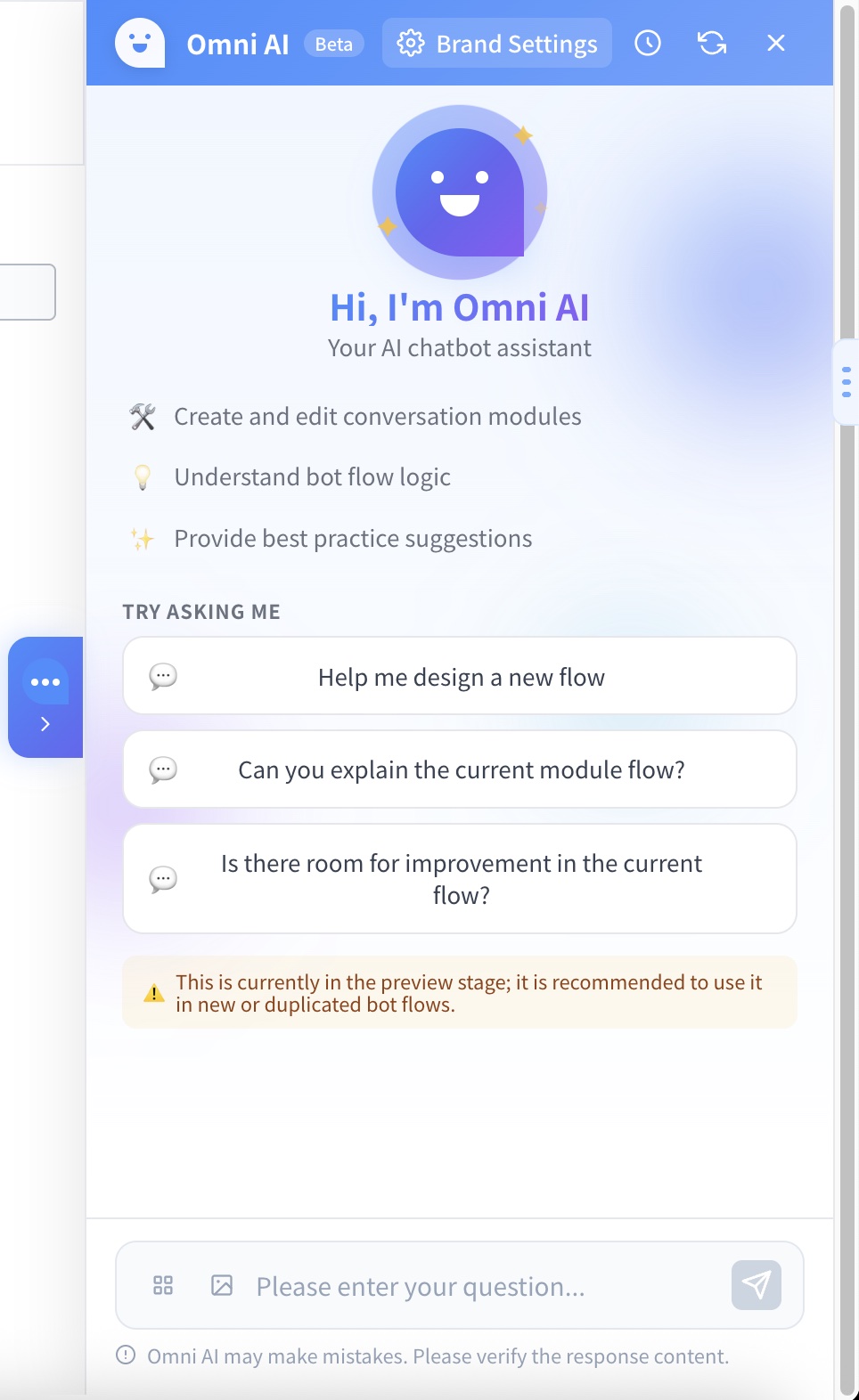
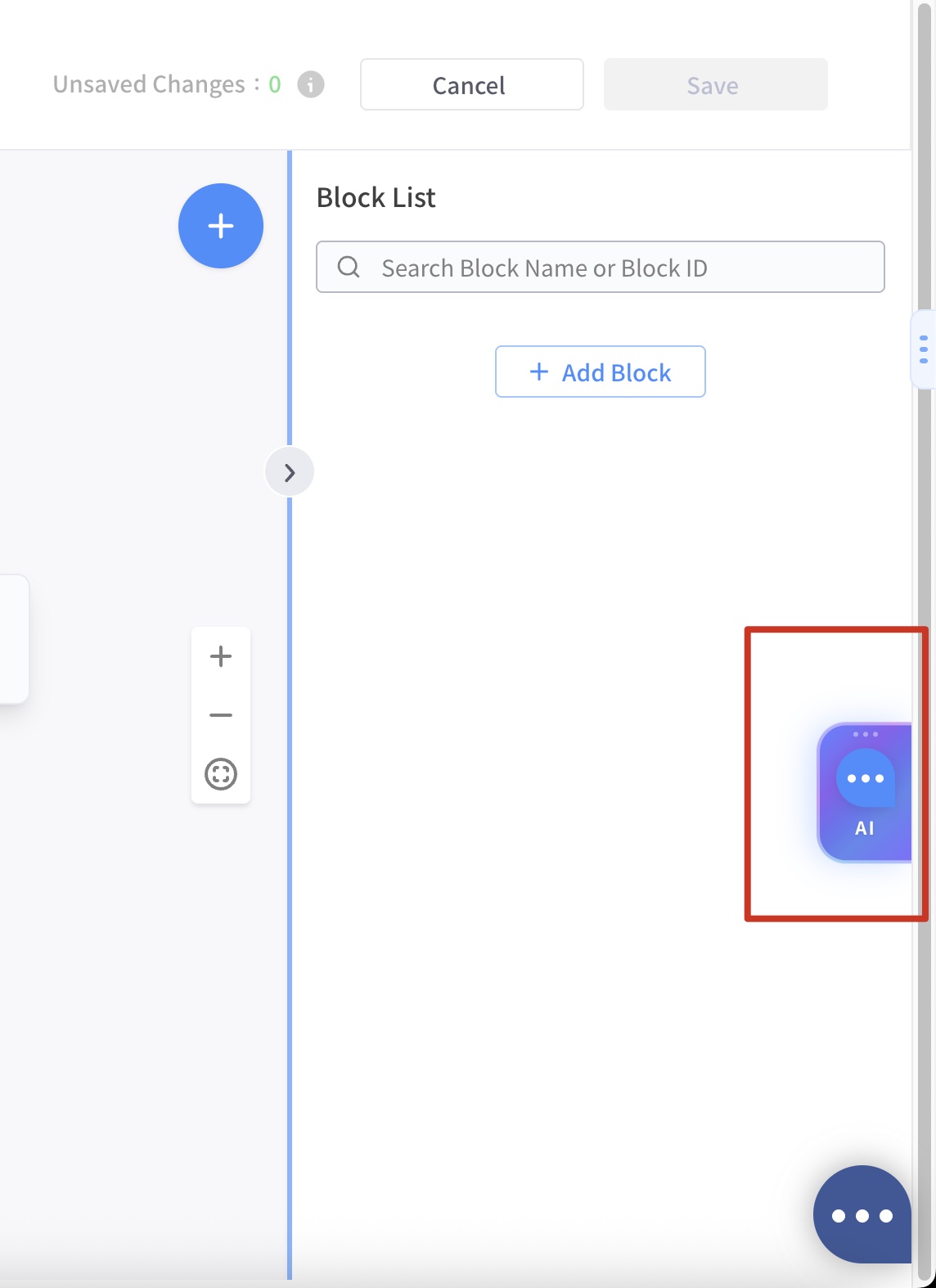
Click the floating AI assistant button on the right side of the Message Flow Builder to open the chat panel. The panel includes suggested questions, a conversation area, and an input box.


Design bot flows with natural language
Describe the bot flow you want and the AI will automatically create the corresponding message cards.
Generates multiple cards at once (text, buttons, carousel, conditional reply, and more)
When you select an existing card, the AI uses that card as context for edits
Supports creating, updating, and deleting cards
Cards generated by the AI are identical to manually built ones and can be edited directly in Message Flow Builder
Example prompt:
"Help me design a flow to generate leads"
Supported card types
The AI can automatically generate the following card types. Platform support matches the existing Chatbot 2.0 cards:
Text card
Web Chat Plugin, Facebook, Instagram, LINE, WhatsApp
-
Photo card
Web Chat Plugin, Facebook, Instagram, LINE, WhatsApp
-
Video card
Facebook, Instagram, LINE, WhatsApp
-
Carousel card
Web Chat Plugin, Facebook, Instagram, LINE, WhatsApp
-
Image carousel card
LINE
-
Image map card
LINE
You need to add the action links manually
User input card
Web Chat Plugin, Facebook, Instagram, LINE, WhatsApp
-
Coupon card
Facebook, Instagram, LINE, WhatsApp
Lists the 10 most recent coupons to choose from
Quick reply card
Web Chat Plugin, Facebook, Instagram, LINE, WhatsApp
-
Conditional reply
Web Chat Plugin, Facebook, Instagram, LINE, WhatsApp
-
The AI can also help manage:
Tags: A tag folder named
OmniAIis created, and the AI selects existing tags from the folder or adds new ones automatically.Custom attributes: Only adding new custom attributes is supported.
AI image generation and editing
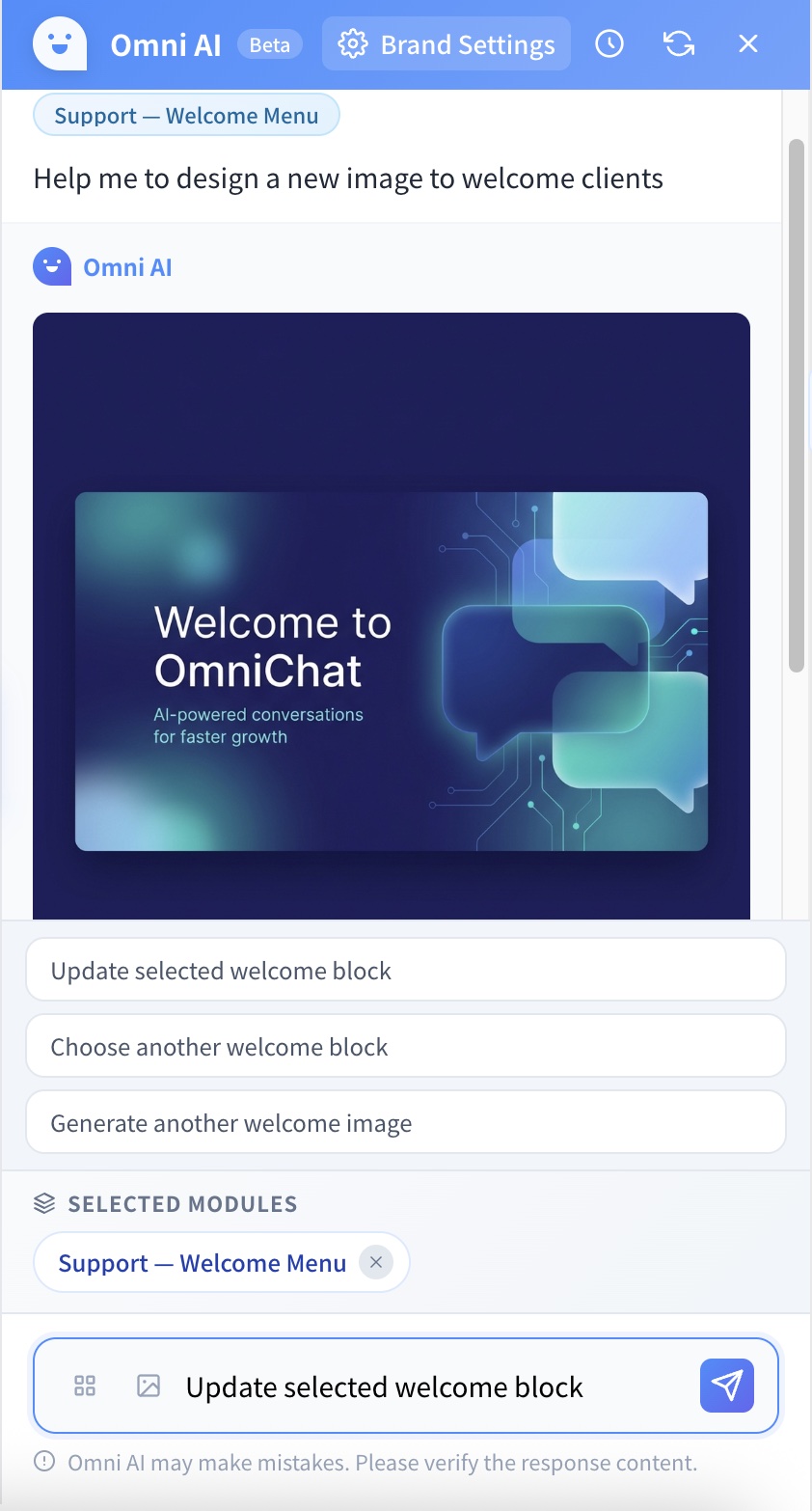
You can ask the AI to generate or edit images directly in the chat, and the result can be applied to bot message cards immediately.
Image generation: Describe the scene in text and the AI generates an image
Image editing: Upload an existing image and describe what to change
Image analysis: The AI analyzes the image content and provides suggestions
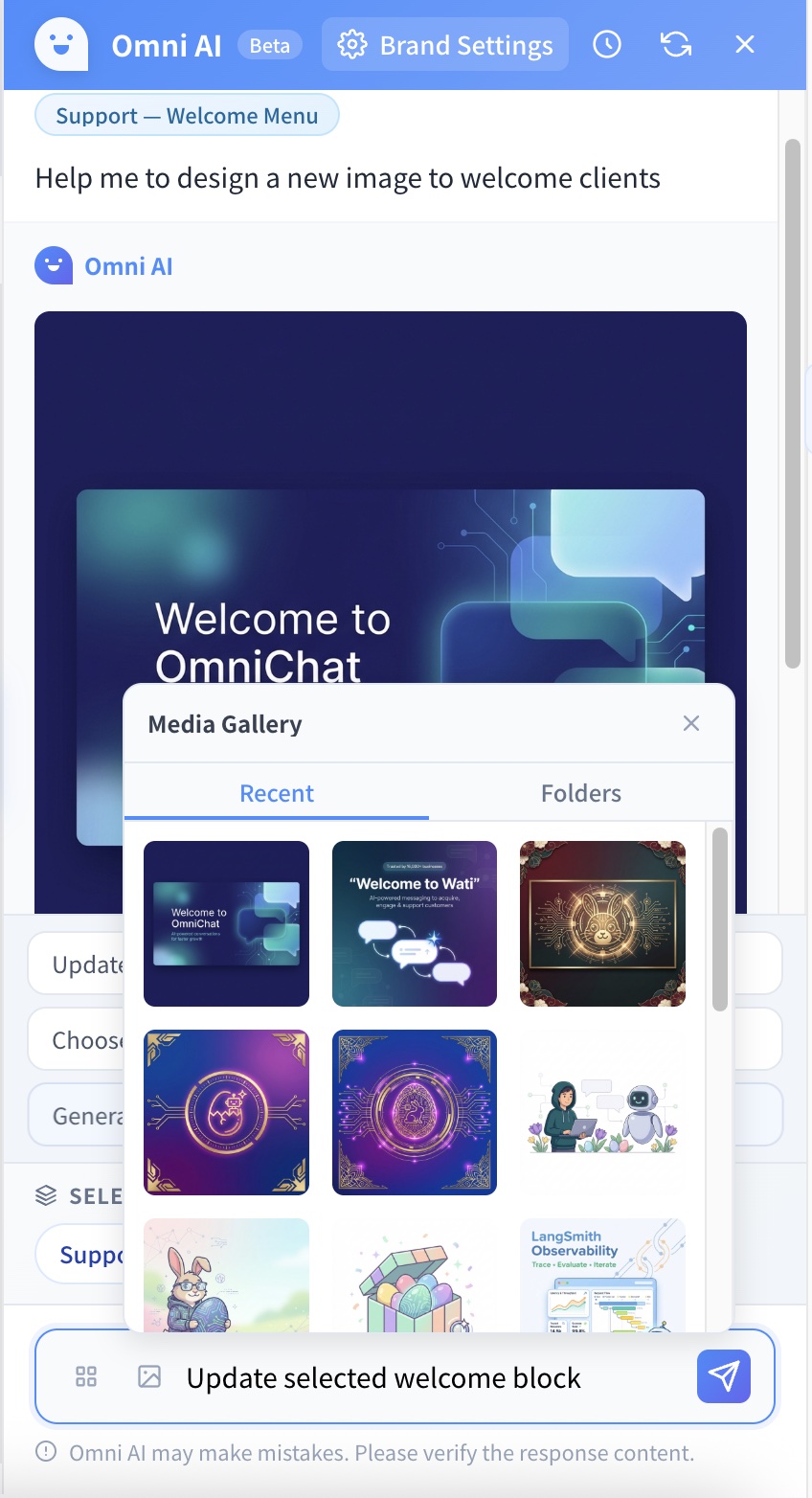
Multiple ways to attach: Drag and drop, paste from clipboard, or pick from the Media Gallery


Brand settings
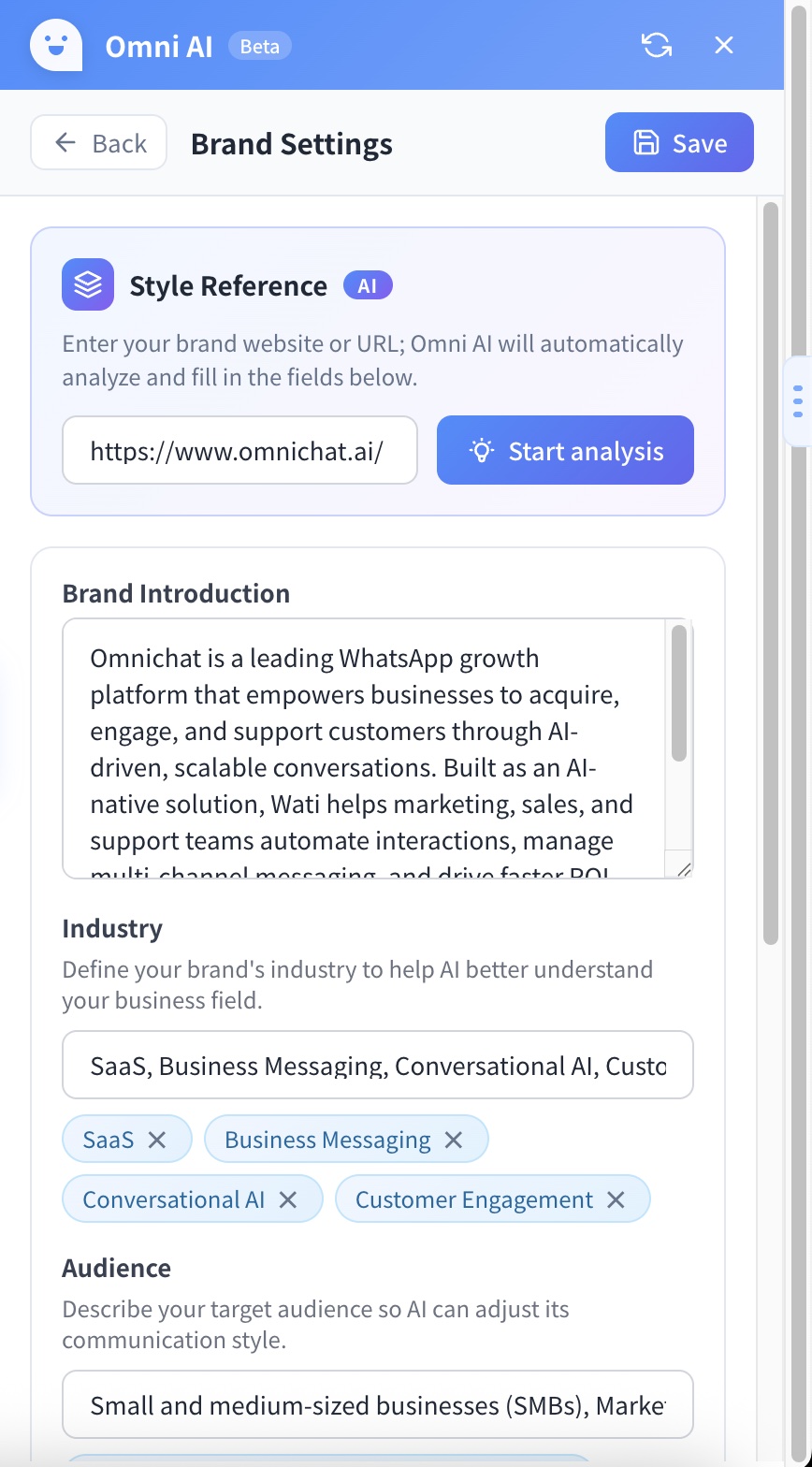
Once your brand information is set, AI-generated content automatically matches your brand voice.
Brand intro
A description of the brand and its core values
Industry
Industry tags (multi-select)
Target audience
Target audience tags (multi-select)
Tone
Brand communication style (multi-select, e.g. formal, casual, creative)
Auto-analysis: Enter a brand URL and the AI automatically extracts and fills in the fields above, so you don't have to enter them by hand.

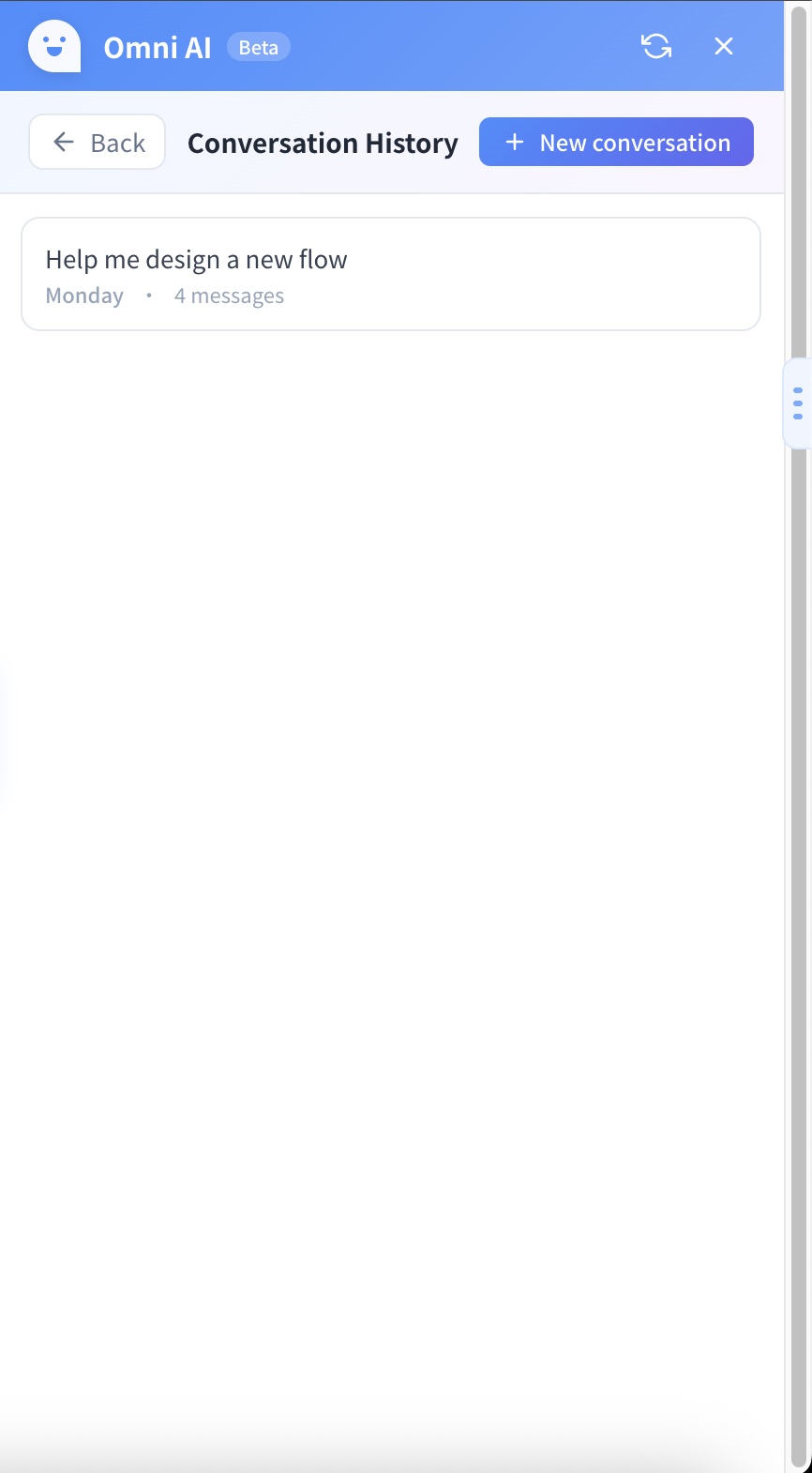
Conversation history
Every AI conversation is saved, so you can revisit or continue a previous design discussion at any time.
The history list shows a preview, message count, and last activity time
Load a past conversation to continue with the previous context
Delete conversations you no longer need
20 conversations per page with paginated loading

Real-time streaming responses
AI responses stream in real time for a smooth conversational experience.
Shows what the AI is currently doing in real time (e.g. "Creating card", "Generating image")
Text appears progressively, so you don't have to wait for the full response
Suggested follow-up questions appear once the response completes, guiding the next step
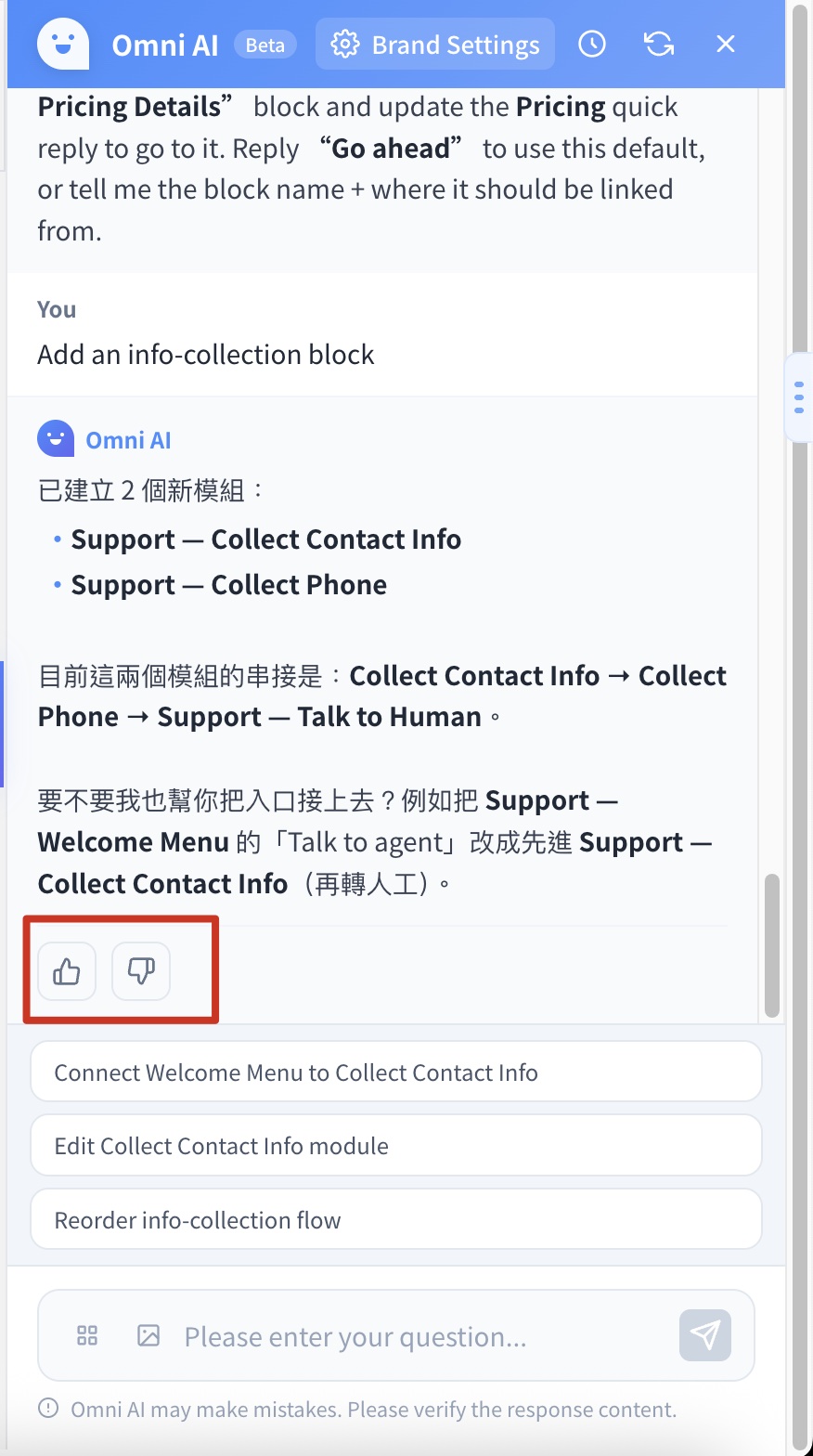
Feedback
Rate AI responses to help improve generation quality over time.
A thumbs-up / thumbs-down button appears under some responses
Feedback is sent immediately and does not interrupt the current conversation

Interface and interaction
Draggable toggle
The floating button on the right can be dragged up and down; the position is remembered
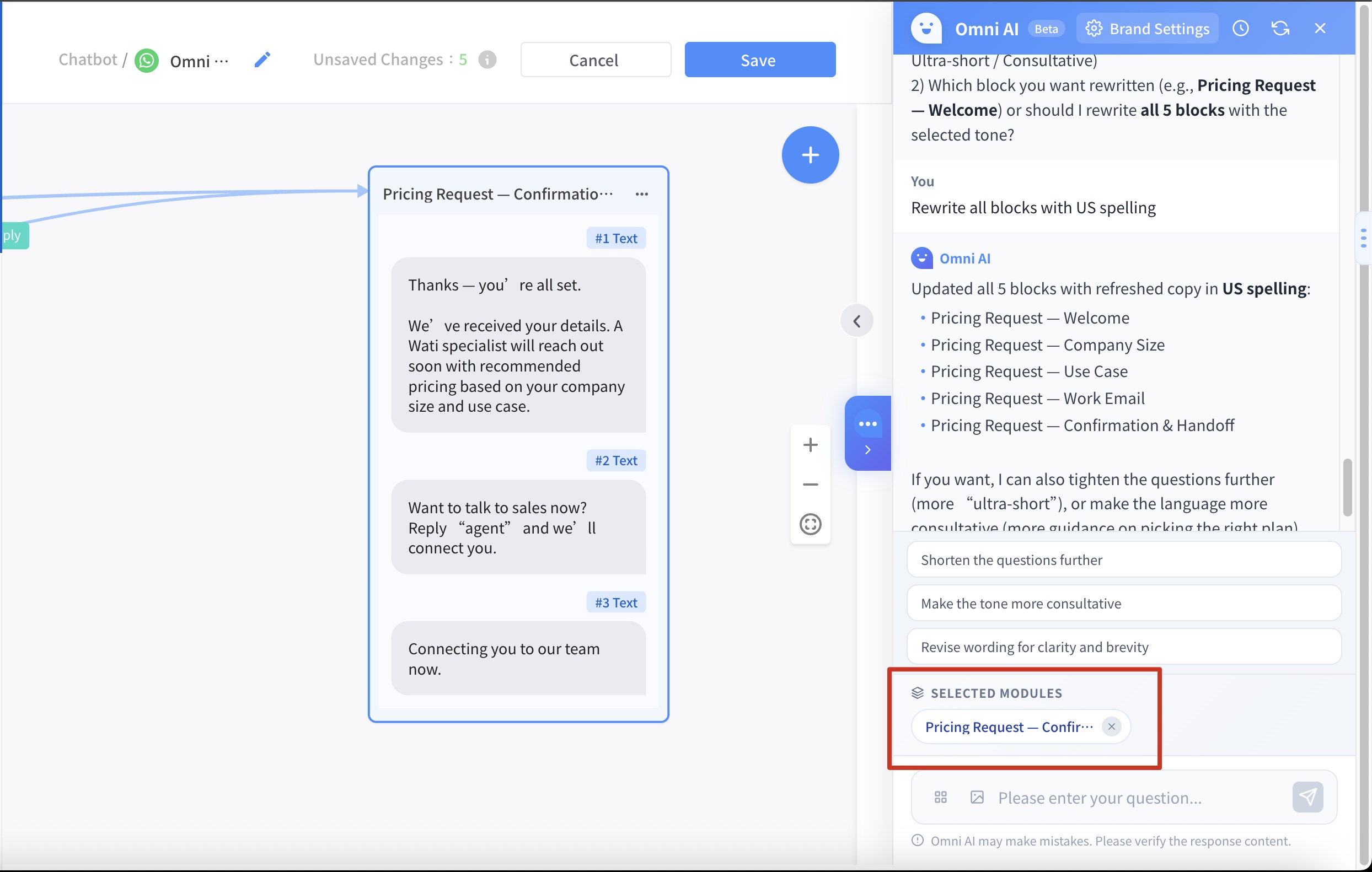
Card selection context
Selecting a card in Message Flow Builder automatically sets it as the conversation context for the AI panel
Auto-focus on cards
After the AI creates or edits a card, the canvas scrolls to it and highlights it
Multi-language UI
The interface supports Traditional Chinese, Simplified Chinese, English, and more
Media Gallery
Browse recently generated images or media assets stored in folders
After a card is selected, the AI chat window shows Selected, and the AI can edit that card directly.

FAQ
Last updated